> ## Documentation Index
> Fetch the complete documentation index at: https://docs.oleria.ai/llms.txt
> Use this file to discover all available pages before exploring further.
# Microsoft Entra ID: end-to-end SSO and SCIM setup
> Connect Microsoft Entra ID to Oleria for single sign-on and SCIM provisioning, covering both the Main Workspace and the Governance App, and Entra's one-Entity-ID-per-app rule.
This page walks through connecting Microsoft Entra ID to Oleria from a blank slate: creating the enterprise application, wiring up single sign-on (SSO), and turning on directory provisioning (SCIM), for whichever combination of Main Workspace and Governance App you need. It draws on [SSO configuration](/administration/sso-configuration), [SCIM user provisioning](/administration/scim-user-provisioning), and [Governance App SCIM provisioning](/administration/scim-governance-provisioning) - see those pages for the full request/response reference and troubleshooting detail; this page focuses on getting from zero to a working Entra connection, and on one Entra-specific wrinkle that complicates connecting both the Main Workspace and Governance App to the same Entra tenant.
This page is about signing in to Oleria and provisioning Oleria accounts from Entra ID. It is not the same as the [Microsoft Entra ID integration](/integrations/microsoft-entra-id) under **Integrations**, which connects Entra as a read-only data source so Oleria can analyze *your Entra tenant's* identities and access - that integration doesn't affect who can sign in to Oleria or how.
## Overview
### Main Workspace vs. Governance App
Oleria has two independent surfaces, each with its own sign-in and provisioning configuration:
* **Main Workspace** - where administrators, operators, and analysts run Oleria itself: posture, access graph, workflows, and settings.
* **Governance App** - a separate portal where reviewers and approvers complete [access reviews](/governance/access-review), act on access requests, and work governance queues. Governance app users are a distinct population from workspace users, typically much larger (anyone in the org who might approve or review something), and usually don't need any other access to Oleria.
Each surface has its own tab in **Settings → SSO Configuration** and its own tab in **Settings → SCIM Configuration**, with separate identity provider lists, separate SCIM credentials, and separate SCIM base URLs. You can connect Entra to either, or both. Critically for Entra specifically: **both tabs share the same Oleria service provider** - the same **Entity ID** and the same **ACS URL** - see [Entra's one-app-per-Entity-ID rule](#entras-one-app-per-entity-id-rule) below before you create a second Entra app.
### SSO vs. SCIM vs. automatic user provisioning
Oleria has three related but independent mechanisms. SSO is for authentication only, where as SCIM and automatic user provisioning are for provisioning.
| | SSO | SCIM | Automatic user provisioning |
| :-------------------------- | :---------------------------------------------------------------------------------------- | :--------------------------------------------------------------------------------------------- | :------------------------------------------------------------------------------------------------- |
| Solves | Authentication - how a user proves who they are when signing in | Provisioning - how an Oleria account gets created, updated, and removed | An Oleria setting that creates an account the moment someone signs in and doesn't already have one |
| Direction | Entra redirects the user's browser to Oleria with a signed SAML assertion at sign-in time | Entra's provisioning engine calls Oleria's SCIM API directly, independent of anyone signing in | Triggered as a side effect of a successful SAML or social sign-in; nothing is pushed from Entra |
| Configured where | **Settings → SSO Configuration**, either tab | **Settings → SCIM Configuration**, either tab | **Settings → SSO Configuration**, **Governance App** tab only |
| Can deactivate/remove users | No | Yes | No - it only ever creates accounts |
| Without it | Users sign in with a social login or in rare cases a local account | An administrator adds, updates, and removes users by hand | Only administrators, or SCIM, create accounts |
See [Automatically provision reviewers](/administration/sso-configuration#automatically-provision-reviewers) for the full detail on that setting - [Part 2](#part-2-set-up-scim) of this page is about SCIM, not automatic user provisioning.
### Possible provisioning flows
Because these mechanisms are independent, and each applies per workspace (Main Workspace vs Governance App), several combinations are all valid. Pick the one that matches what you're trying to achieve before you start:
| Flow | Main Workspace | Governance App | When to use it |
| :-------------------------------- | :------------------------- | :------------------------------------------------------- | :------------------------------------------------------------------------------------------------------------------------------------------------------------------------------------------------------------------------------------------------------------------------------------------------------------------------------------------------------------------------------------------------------------------------------------------- |
| SSO + SCIM (recommended) | Entra SAML + SCIM | Entra SAML + SCIM | Full end-to-end: Entra group membership determines who has an Oleria account and what role they hold, and the same Entra credentials sign them in, including automatic deactivation when someone is unassigned. This is what the rest of this page sets up. On both workspaces at once, this needs one shared SSO app plus a separate provisioning-only app per workspace - see [Set up the second workspace](#set-up-the-second-workspace). |
| SSO only | Entra SAML | Entra SAML | Small, stable user list you're comfortable adding by hand in [Manage Users](/administration/manage-users), but want Entra credentials for sign-in. Apply to either workspace independently, or both (one shared Entra app either way - see [below](#entras-one-app-per-entity-id-rule)). |
| SCIM only | Entra SCIM | Entra SCIM | Users should come from Entra automatically, but you're not ready to move sign-in off social login yet. Apply to either workspace independently, or both. |
| SSO + automatic user provisioning | N/A - Governance App only | Entra SAML + Oleria's automatic user provisioning toggle | Lighter-weight than SCIM - no provisioning connector to build in Entra, accounts just appear the first time someone signs in - but there's no automatic deprovisioning, and it's gated only by email domain, not Entra app assignment. Good for "let anyone at the company become a reviewer" without building a directory sync. |
| Split by surface | Manual, or a different IdP | Entra SAML + SCIM | Common when only the Governance App needs to reach a broad, automatically-provisioned population (for example, every employee as a potential reviewer), while a small workspace admin team is managed separately. Also sidesteps the Entity ID rule entirely, since only one Oleria workspace uses Entra. |
This page sets up the recommended SSO + SCIM flow. If you'd rather use automatic user provisioning instead of SCIM for the Governance App, see the [note at the end of Part 2](#part-2-set-up-scim). If you need **both** Oleria workspaces connected to Entra, read the next section before creating a second enterprise application.
### Entra's one-app-per-Entity-ID rule
Microsoft Entra requires every SAML relying party - every enterprise application configured for SAML SSO - to have a unique Entity ID (Identifier) within the tenant:
> "There cannot be two applications in a single Microsoft Entra tenant with the same entity identifier." - [Microsoft Learn](https://learn.microsoft.com/en-us/entra/identity/enterprise-apps/add-application-portal-setup-sso-rpsts)
Entra enforces this because it uses the Entity ID to work out which application should receive a given SAML response; without a unique identifier per app, it can't disambiguate. This is sometimes described as one Entity ID per "relying party trust" (RPT) - that's not a separate object you configure, it's just what Entra calls an application once it's set up for SAML SSO. Every enterprise app with SAML SSO configured is a relying party trust; there's no way to do SAML SSO without one, and no way around the uniqueness rule by avoiding the term.
This collides with Oleria's design: as the [SSO configuration](/administration/sso-configuration#main-workspace-and-governance-app) page notes, the **Main Workspace** and **Governance App** tabs show the *same* Entity ID and ACS URL, because they share one Oleria service provider. If you create two separate Entra enterprise apps - one per Oleria workspace - both need Oleria's Entity ID, and Entra will reject the second one with an error like "please enter an identifier which is unique within your organization."
**The fix:** use a single Entra enterprise application for both workspaces, rather than creating two. Complete [Part 1](#part-1-set-up-sso) once to create that one app, then when you reach the SSO Configuration **Governance App** tab in Oleria, add its identity provider using the *same* Entra app's federation metadata URL instead of creating a second app. One Entra app, one Entity ID, satisfies Entra's rule, and both Oleria workspaces get a working IdP.
A single shared Entra app means the same set of assigned Entra users/groups can sign in through either workspace - Entra assignment doesn't distinguish which Oleria workspace a sign-in is destined for, since that's determined by which button the user selects on Oleria's own sign-in page. If you need a genuinely different population gated at the identity provider for each workspace, don't reuse one Entra app; instead, connect Entra to only one workspace and use a different IdP, or manual provisioning, for the other.
## Prerequisites
* Administrator access to your Oleria workspace, and Global Administrator (or equivalent) access in Entra to create and configure enterprise applications.
* Decide which workspace(s) - **Main Workspace**, **Governance App**, or both - you're connecting Entra to, and whether you want SSO, SCIM, or both for each. See [Possible provisioning flows](#possible-provisioning-flows) above.
* For SCIM into the **Main Workspace**: know which Oleria roles (`admin`, `operator`, `analyst`, `governance-operator`, `identity-lifecycle-operator`) your Entra groups should map to. See [How Oleria maps roles and groups](/administration/scim-user-provisioning#how-oleria-maps-roles-and-groups).
* **For SCIM:** a **Microsoft Entra ID P1** or **P2** license. Automatic provisioning is a premium Entra feature, and provisioning *groups* - which is how the Main Workspace grants roles - requires P1 at minimum. Check this before you start. See [Entra ID P1 or P2 is required for SCIM](#entra-id-p1-or-p2-is-required-for-scim) below. SSO ([Part 1](#part-1-set-up-sso)) works on Entra ID Free, except for token encryption, which also needs P1 or P2.
## Part 1: Set up SSO
In Oleria, go to **Settings → SSO Configuration**, select the **Main Workspace** or **Governance App** tab depending on which one you're connecting first, and click **Add IdP** in the **SAML IdP** card.
In the Microsoft Entra admin center, go to **Entra ID → Enterprise applications → New application → Create your own application**, select **Non-gallery application**, and name it something that identifies it as the Oleria connection (for example `Oleria`) - if you plan to [share this one app across both workspace](#entras-one-app-per-entity-id-rule), avoid naming it after just one workspace.
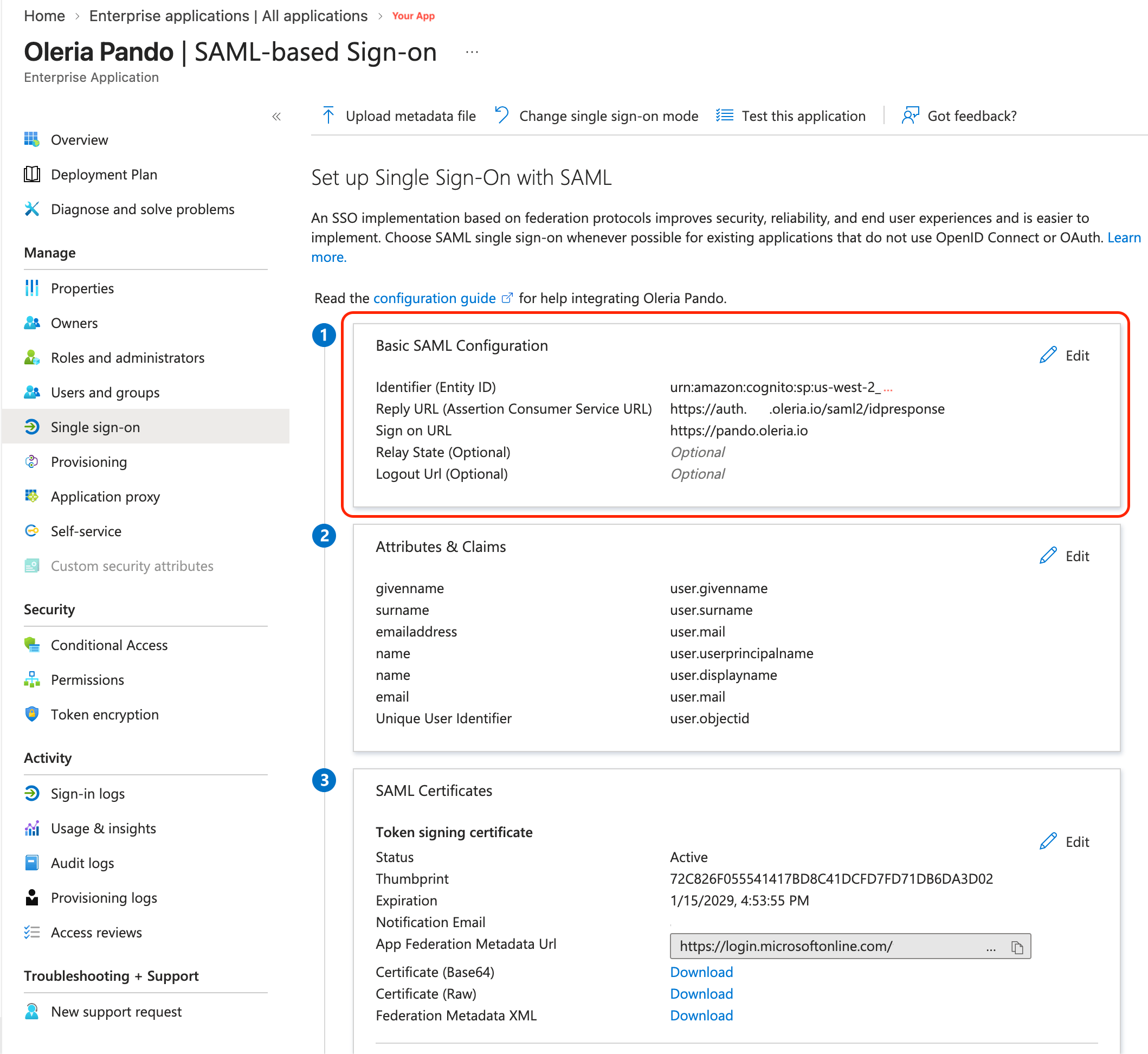
On Oleria's **Oleria details** step, copy the **Entity ID** and **ACS URL**. In the Entra app, select **Single sign-on → SAML → Basic SAML Configuration**, and enter them as the **Identifier** and **Reply URL**. Click **Save** and close the panel.
Navigation:
 Basic SAML Configuration panel:
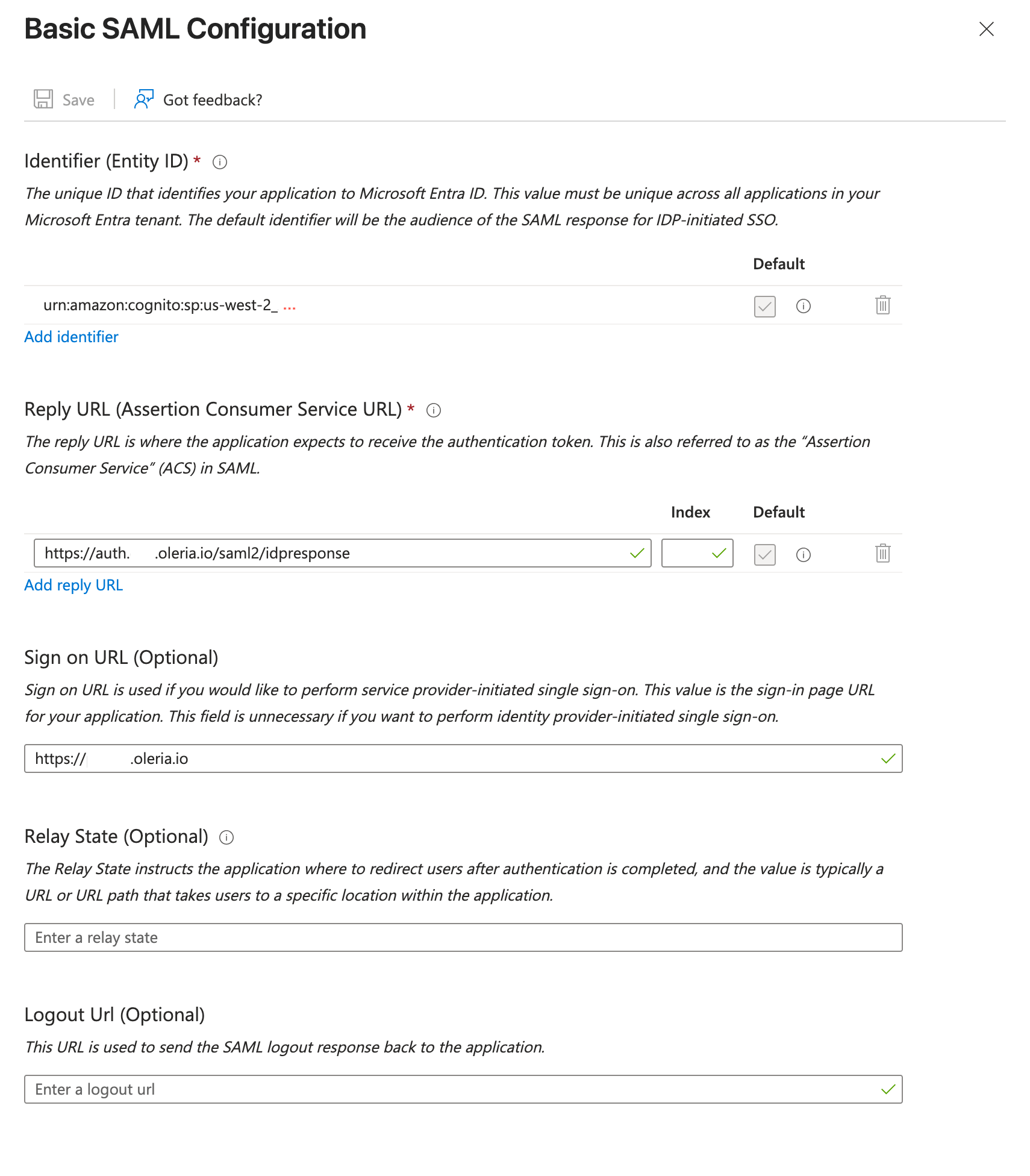 In **Attributes & Claims**:
* Edit the **Unique User Identifier (Name ID)** claim, set **Name identifier format** to **Persistent**, and set the **Source attribute** to `user.objectid` (or another stable, opaque identifier) - Oleria's service provider requires a persistent NameID policy and rejects sign-in otherwise.
* Add a new claim named `email` with source attribute `user.mail`, and another named `name` with source attribute `user.displayname`. Leave **Namespace** blank on both - Oleria requires these two exact, short claim names.
In **Attributes & Claims**:
* Edit the **Unique User Identifier (Name ID)** claim, set **Name identifier format** to **Persistent**, and set the **Source attribute** to `user.objectid` (or another stable, opaque identifier) - Oleria's service provider requires a persistent NameID policy and rejects sign-in otherwise.
* Add a new claim named `email` with source attribute `user.mail`, and another named `name` with source attribute `user.displayname`. Leave **Namespace** blank on both - Oleria requires these two exact, short claim names.
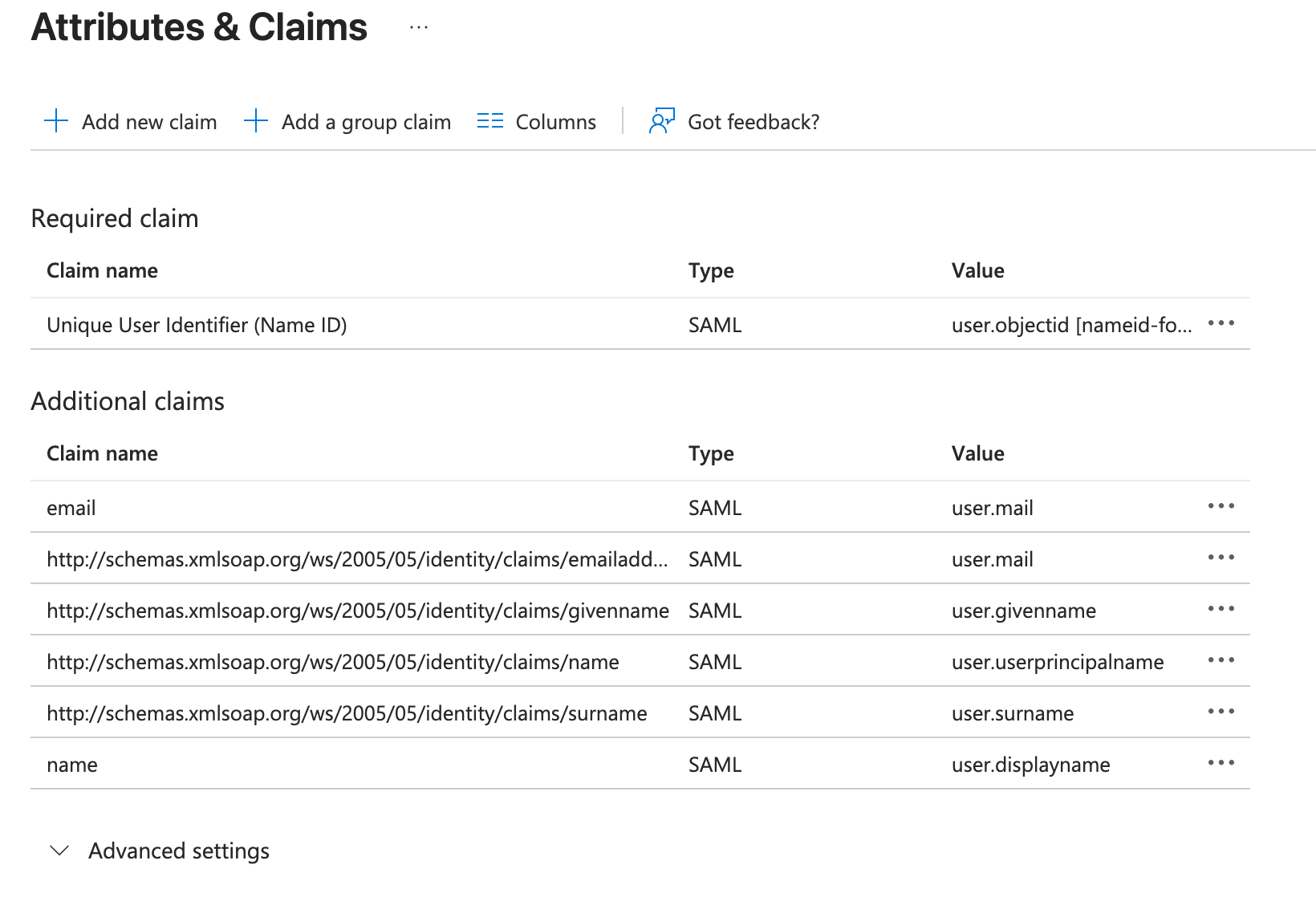 See [Enter the SAML IdP details](/administration/sso-configuration#connect-a-saml-identity-provider) for why each of these is required.
Assign the users or groups who should be able to sign in through Oleria to the app, then in **SAML Certificates**, copy the **App Federation Metadata Url**.
Back in Oleria, complete the **SAML IdP details** step: give the provider a **Name**, paste the Entra metadata URL into **Metadata**, and decide whether to turn on **Sign requests** and/or **Encrypt SAML responses**. Click **Add identity provider**.
Skip this step if you left **Sign requests** off. Otherwise, in the Entra app's **SAML Certificates** section, click **Edit** across from **Verification certificates**, check **Require verification certificates**, and upload Oleria's **Request signing certificate**, downloaded in **cer** format earlier in this Part.
See [Enter the SAML IdP details](/administration/sso-configuration#connect-a-saml-identity-provider) for why each of these is required.
Assign the users or groups who should be able to sign in through Oleria to the app, then in **SAML Certificates**, copy the **App Federation Metadata Url**.
Back in Oleria, complete the **SAML IdP details** step: give the provider a **Name**, paste the Entra metadata URL into **Metadata**, and decide whether to turn on **Sign requests** and/or **Encrypt SAML responses**. Click **Add identity provider**.
Skip this step if you left **Sign requests** off. Otherwise, in the Entra app's **SAML Certificates** section, click **Edit** across from **Verification certificates**, check **Require verification certificates**, and upload Oleria's **Request signing certificate**, downloaded in **cer** format earlier in this Part.
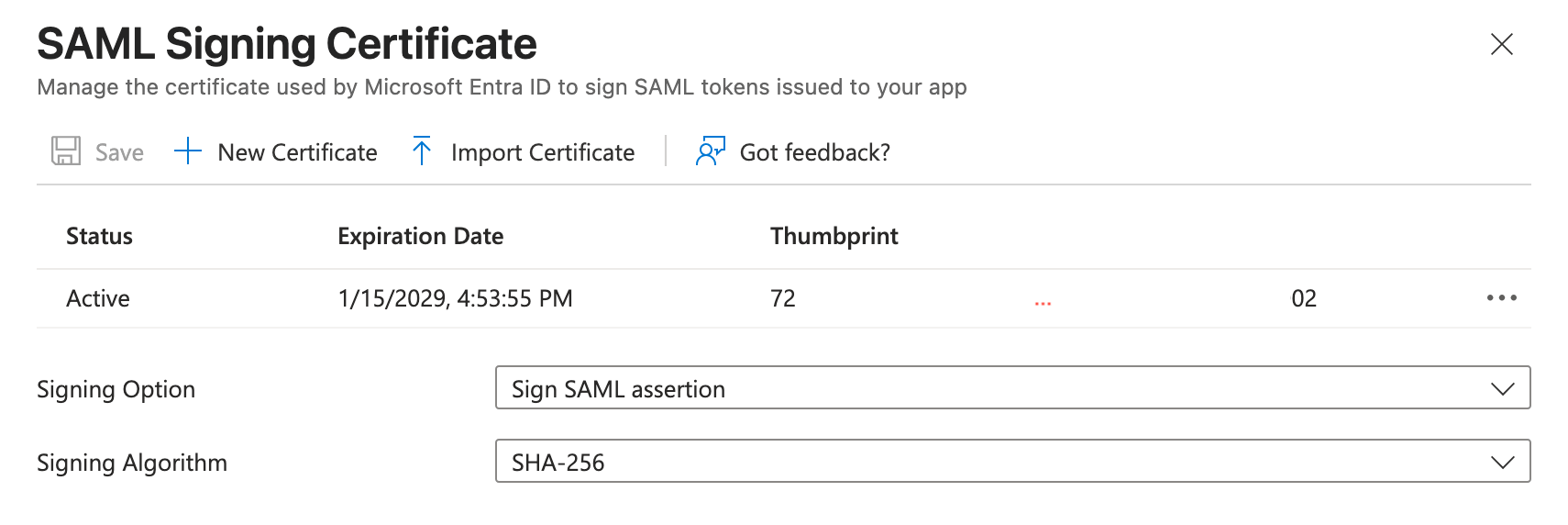 Skip this step if you turned off **Encrypt SAML responses** in the Oleria SAML Configuration page.
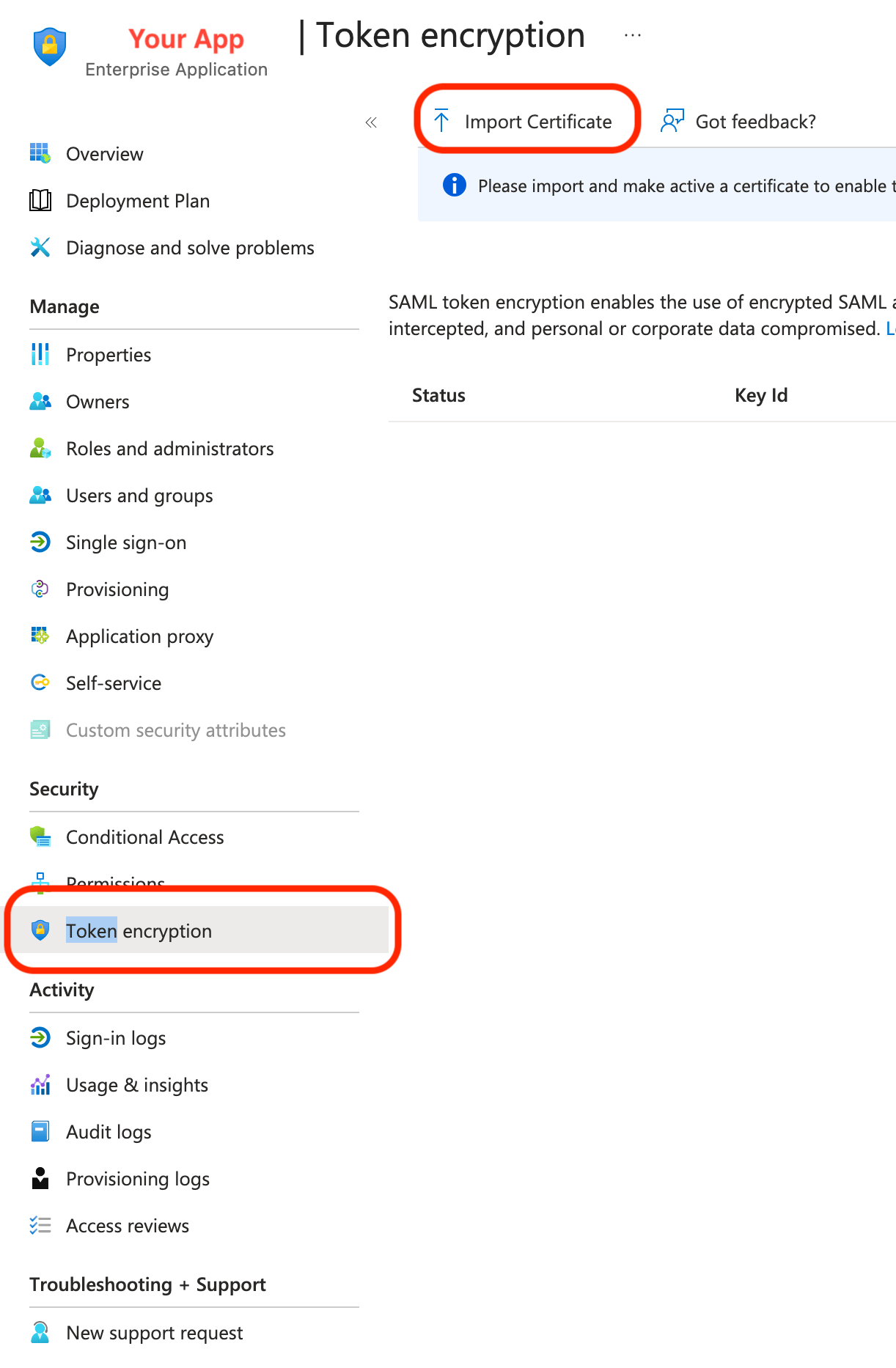
Back in Oleria you'll see a prompt to download the **Response encryption certificate** generated specifically for this provider - download it in **cer** format. In Entra, open the app's **Token encryption** page (a separate page from **SAML Certificates** - requires a Microsoft Entra ID P1 or P2 license), select **Import Certificate**, upload the certificate, then activate it from the **...** menu next to the imported certificate.
Skip this step if you turned off **Encrypt SAML responses** in the Oleria SAML Configuration page.
Back in Oleria you'll see a prompt to download the **Response encryption certificate** generated specifically for this provider - download it in **cer** format. In Entra, open the app's **Token encryption** page (a separate page from **SAML Certificates** - requires a Microsoft Entra ID P1 or P2 license), select **Import Certificate**, upload the certificate, then activate it from the **...** menu next to the imported certificate.
 Sign out of Oleria, go to [https://www.oleria.com/sign-in](https://www.oleria.com/sign-in), select the new provider, and confirm you land back in Oleria signed in.
## Part 2: Set up SCIM
### Entra ID P1 or P2 is required for SCIM
Automatic provisioning is a premium Entra capability: Microsoft's [licensing reference](https://learn.microsoft.com/en-us/entra/fundamentals/licensing) lists **automated user provisioning to SaaS apps** as available on Entra ID Free, but **automated group provisioning to SaaS apps** as P1 and above. In practice, treat **P1 as the requirement**:
* **Main Workspace** - needs P1 or P2. Oleria grants roles through group membership, so the provisioning job has to push groups, and group provisioning is a P1 feature.
* **Governance App** - user provisioning alone is enough here, since every provisioned user gets the `reviewer` role automatically and there are no groups to sync. This is the one case Microsoft's table says Free covers. Treat it as unsupported on Free anyway unless you've confirmed it in your own tenant: [provisioning logs](https://learn.microsoft.com/en-us/entra/identity/monitoring-health/concept-provisioning-logs) are themselves a P1 feature, so on Free you have no way to see why a sync failed.
P1 is included in Microsoft 365 E3, E5, and E7, Microsoft 365 F1 and F3, Enterprise Mobility + Security E3, and Microsoft 365 Business Premium. P2 is included in Microsoft 365 E5 and E7 and in EMS E5. Both are also sold standalone. Many organizations already hold P1 through Microsoft 365 E3 without realizing it.
If your tenant is on Entra ID Free and upgrading isn't an option, see [Alternatives without Entra ID P1](#alternatives-without-entra-id-p1).
In Oleria, go to **Settings → SCIM Configuration** and select the same tab you used in Part 1 (**Main Workspace** or **Governance App**). Copy the **SCIM Base URL**, **Client ID**, **Client Secret**, and **OAuth Token URL**.
On the same Entra enterprise application from Part 1 (or, if you're only setting up SCIM without SSO, a new **Non-gallery application**).
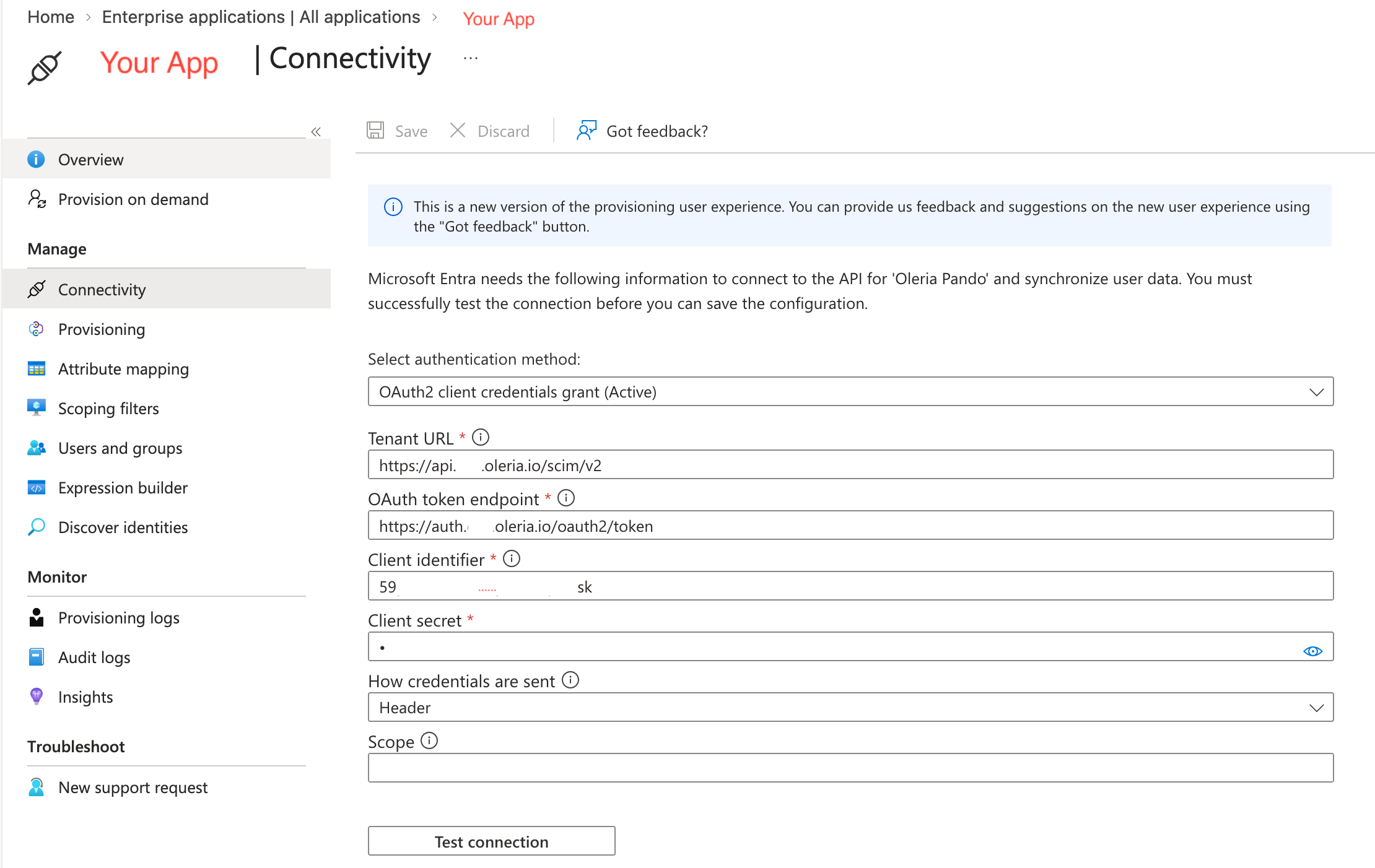
In the **Connectivity** section set the authentication metod to **OAuth2 client credentials grant**, for **Tenant URL** paste Oleria's **SCIM Base URL**, for **OAuth token endpoint** paste Oleria's **OAuth Token URL**, for **Client identifier** paste Oleria's **Client ID**, and for **Client secret** paste Oleria's **Client Secret**, credentials should be sent by **Header**, and finally **Scope** should remain empty. Click **Test Connection** to confirm Entra can reach Oleria, then click **Save**.
Sign out of Oleria, go to [https://www.oleria.com/sign-in](https://www.oleria.com/sign-in), select the new provider, and confirm you land back in Oleria signed in.
## Part 2: Set up SCIM
### Entra ID P1 or P2 is required for SCIM
Automatic provisioning is a premium Entra capability: Microsoft's [licensing reference](https://learn.microsoft.com/en-us/entra/fundamentals/licensing) lists **automated user provisioning to SaaS apps** as available on Entra ID Free, but **automated group provisioning to SaaS apps** as P1 and above. In practice, treat **P1 as the requirement**:
* **Main Workspace** - needs P1 or P2. Oleria grants roles through group membership, so the provisioning job has to push groups, and group provisioning is a P1 feature.
* **Governance App** - user provisioning alone is enough here, since every provisioned user gets the `reviewer` role automatically and there are no groups to sync. This is the one case Microsoft's table says Free covers. Treat it as unsupported on Free anyway unless you've confirmed it in your own tenant: [provisioning logs](https://learn.microsoft.com/en-us/entra/identity/monitoring-health/concept-provisioning-logs) are themselves a P1 feature, so on Free you have no way to see why a sync failed.
P1 is included in Microsoft 365 E3, E5, and E7, Microsoft 365 F1 and F3, Enterprise Mobility + Security E3, and Microsoft 365 Business Premium. P2 is included in Microsoft 365 E5 and E7 and in EMS E5. Both are also sold standalone. Many organizations already hold P1 through Microsoft 365 E3 without realizing it.
If your tenant is on Entra ID Free and upgrading isn't an option, see [Alternatives without Entra ID P1](#alternatives-without-entra-id-p1).
In Oleria, go to **Settings → SCIM Configuration** and select the same tab you used in Part 1 (**Main Workspace** or **Governance App**). Copy the **SCIM Base URL**, **Client ID**, **Client Secret**, and **OAuth Token URL**.
On the same Entra enterprise application from Part 1 (or, if you're only setting up SCIM without SSO, a new **Non-gallery application**).
In the **Connectivity** section set the authentication metod to **OAuth2 client credentials grant**, for **Tenant URL** paste Oleria's **SCIM Base URL**, for **OAuth token endpoint** paste Oleria's **OAuth Token URL**, for **Client identifier** paste Oleria's **Client ID**, and for **Client secret** paste Oleria's **Client Secret**, credentials should be sent by **Header**, and finally **Scope** should remain empty. Click **Test Connection** to confirm Entra can reach Oleria, then click **Save**.
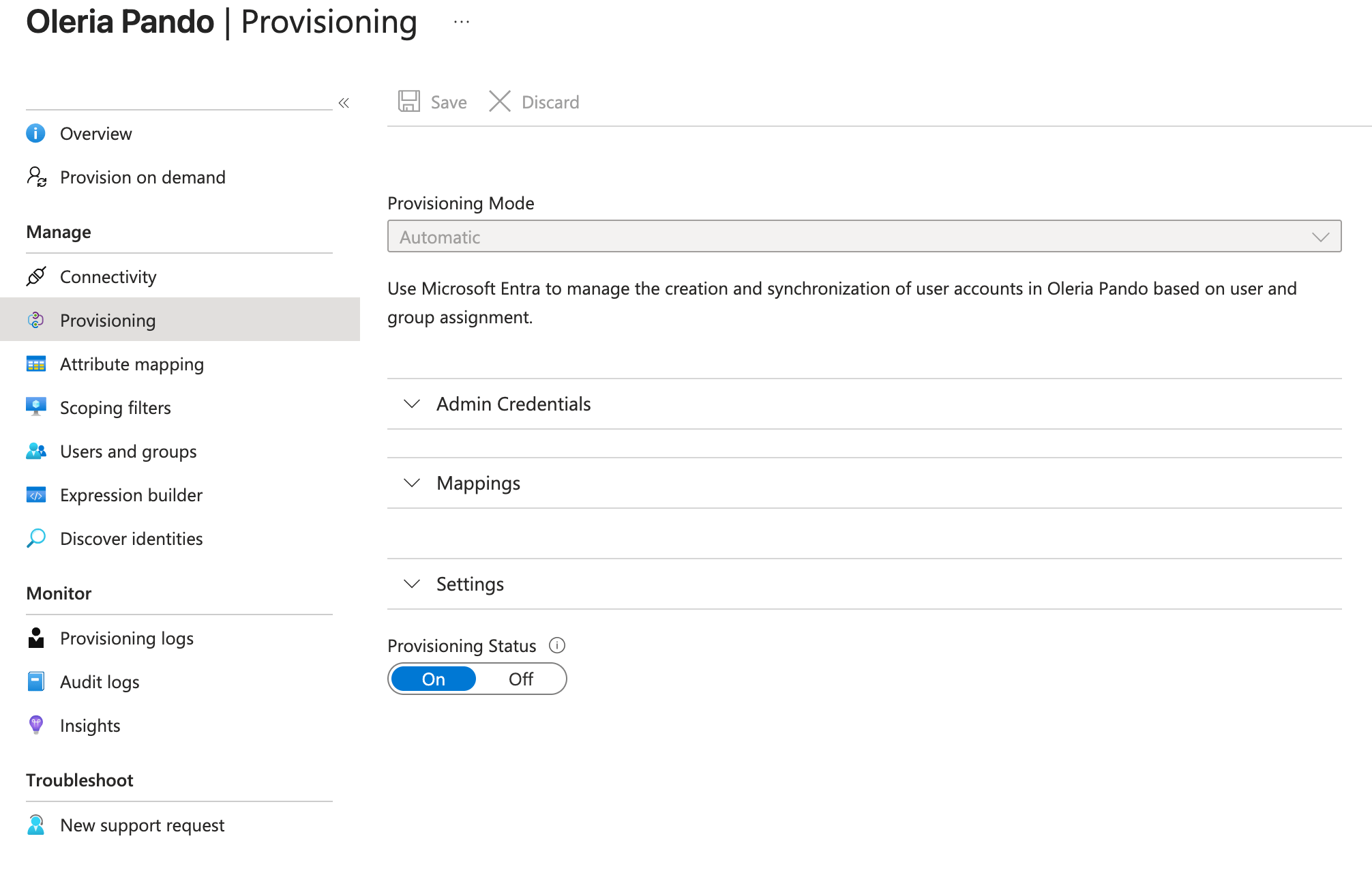
 In the **Provisioning** section, set **Provisioning Mode** to **Automatic**, and set **Provisioning Status** to **On**, then click **Save**. This enables Entra to call Oleria's SCIM API and create, update, and deactivate users and groups.
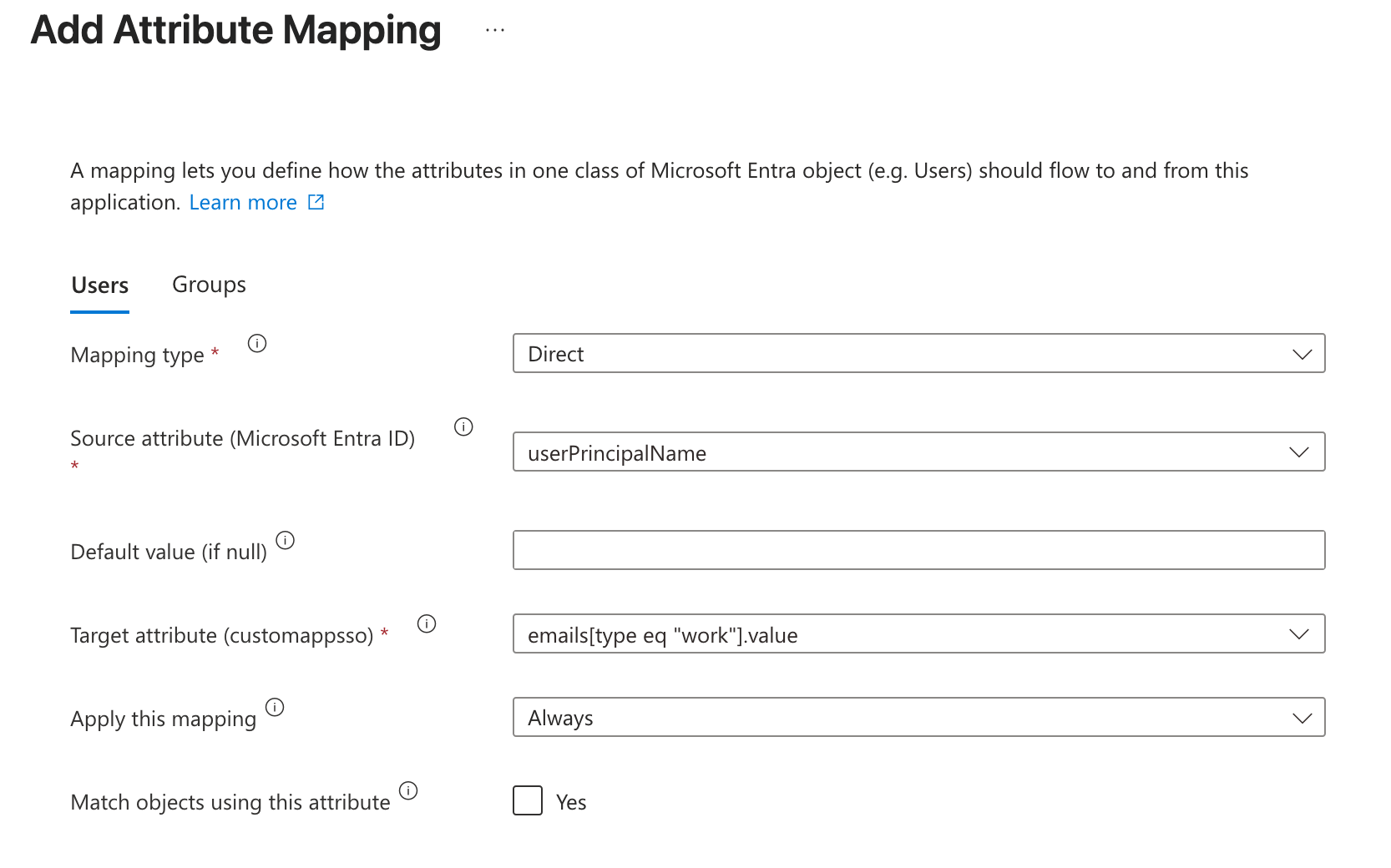
 Entra proposes default attribute mappings for **Provision Microsoft Entra ID Users**.
* Confirm `userPrincipalName` (or another attribute holding the user's email) maps to `userName`.
* Confirm that either the name parts or `name.formatted` or both are mapped. This should exist by default.
* Confirm that `userPrincipalName` (or another attribute holding the user's email) maps to `emails[type eq "work"].value`, this mapping defaults to `mail` but that is not commonly used and `userPrincipalName` is more reliable.
**Main Workspace only:** Oleria grants roles through group membership, not directly on the user (see [How Oleria maps roles and groups](/administration/scim-user-provisioning#how-oleria-maps-roles-and-groups)). Leave **Provision Microsoft Entra ID Groups** enabled so group membership syncs along with users.
**Governance App:** there is no group-to-role mapping to configure - every provisioned user is assigned the single `reviewer` role automatically. You can turn group provisioning off and provision users only.
Entra proposes default attribute mappings for **Provision Microsoft Entra ID Users**.
* Confirm `userPrincipalName` (or another attribute holding the user's email) maps to `userName`.
* Confirm that either the name parts or `name.formatted` or both are mapped. This should exist by default.
* Confirm that `userPrincipalName` (or another attribute holding the user's email) maps to `emails[type eq "work"].value`, this mapping defaults to `mail` but that is not commonly used and `userPrincipalName` is more reliable.
**Main Workspace only:** Oleria grants roles through group membership, not directly on the user (see [How Oleria maps roles and groups](/administration/scim-user-provisioning#how-oleria-maps-roles-and-groups)). Leave **Provision Microsoft Entra ID Groups** enabled so group membership syncs along with users.
**Governance App:** there is no group-to-role mapping to configure - every provisioned user is assigned the single `reviewer` role automatically. You can turn group provisioning off and provision users only.
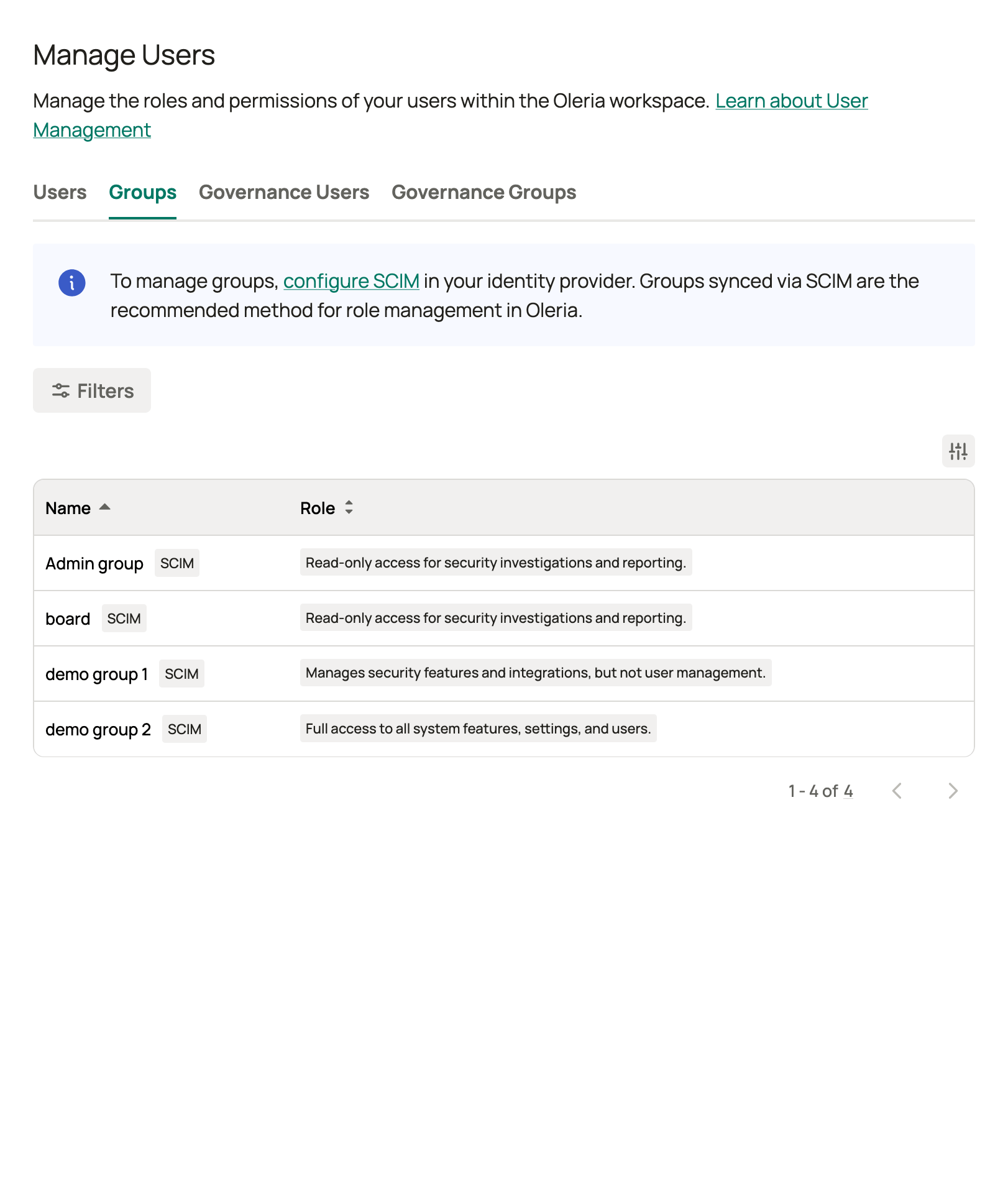
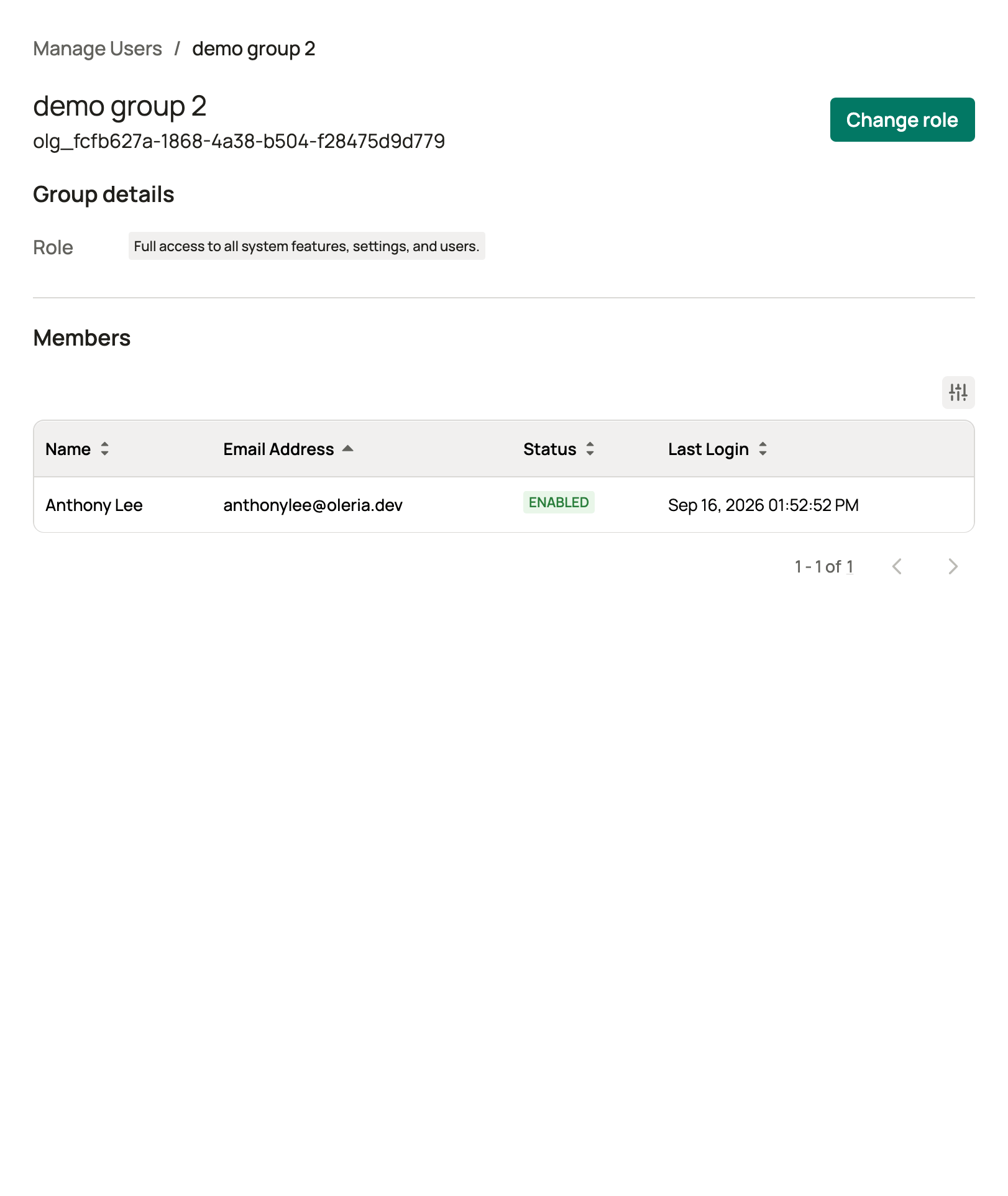
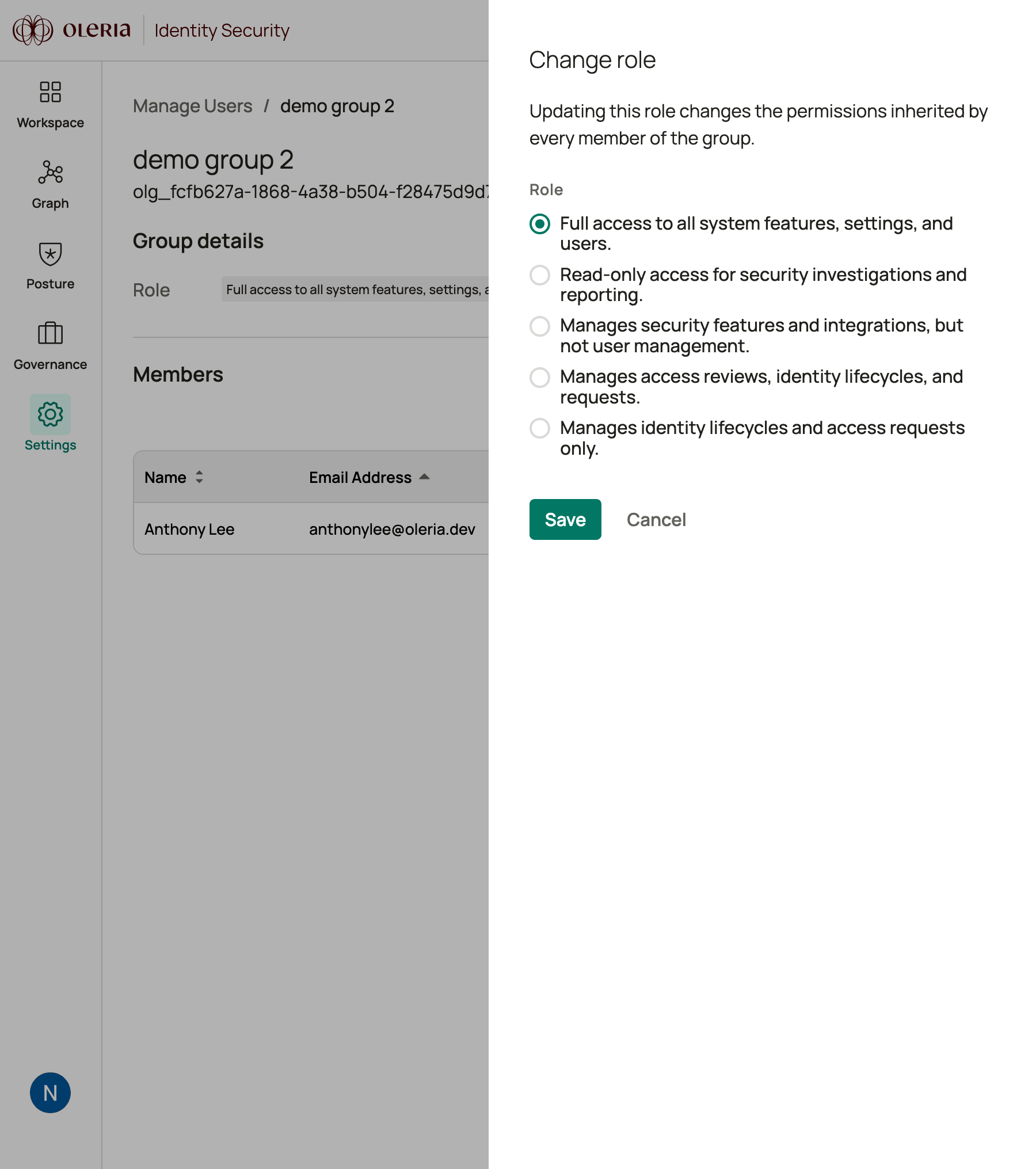
 In Oleria, under **Settings** open **Manage Users**, select the **Groups** tab, and for each group you push, select it, click **Change role**, choose the role it should map to, and click **Save**. Every current and future member of the group inherits that role. See [Assign a role to a group](/administration/manage-users#assign-a-role-to-a-group) for the full walkthrough.
Oleria's Manage Users page:
In Oleria, under **Settings** open **Manage Users**, select the **Groups** tab, and for each group you push, select it, click **Change role**, choose the role it should map to, and click **Save**. Every current and future member of the group inherits that role. See [Assign a role to a group](/administration/manage-users#assign-a-role-to-a-group) for the full walkthrough.
Oleria's Manage Users page:
 The detail page for a particular group:
 Changing the role mapping for that group:
 Under **Users and groups**, assign the users or groups that should get Oleria accounts. On the **Provisioning** tab, set **Scope** to **Sync only assigned users and groups** (recommended over syncing the whole directory), then click **Start provisioning**.
Watch the **Provisioning** tab's sync status - the first cycle can take anywhere from about 20 minutes to a few hours. In Oleria, confirm the new users appear (**Main Workspace**: in [Manage Users](/administration/manage-users) with the expected role; **Governance App**: in the governance reviewer list). Unassign a test user in Entra and confirm they lose access in Oleria on the next cycle.
**Alternative for the Governance App:** if you don't need directory-driven deprovisioning and don't want to build the Entra provisioning connector above, you can skip this Part entirely and use Oleria's built-in automatic user provisioning instead - it only requires SSO (Part 1) to already be working. Follow [Automatically provision reviewers](/administration/sso-configuration#automatically-provision-reviewers) to enable it and set allowed email domains. Remember this is not SCIM: it only creates accounts on sign-in and never deactivates them, so it's not a substitute for SCIM if you need automatic offboarding.
## Alternatives without Entra ID P1
If your tenant is on Entra ID Free and adding P1 isn't an option, these are the working paths. They're the same options as the [Okta equivalent](/administration/okta-sso-scim-setup#alternatives-without-lifecycle-management), since the constraint is on the identity provider side rather than Oleria's.
| Option | Applies to | What you get | What you give up |
| :---------------------------------------------------------- | :----------------------------- | :------------------------------------------------------------------------------------------------------------------------------------------------------------------------------------------------------------------------------------------------------------------------------------------------------------------------------------------ | :---------------------------------------------------------------------------------------------------------------------------- |
| **Automatic user provisioning** (recommended for reviewers) | Governance App only | Accounts are created the first time someone signs in through Entra SSO, with no provisioning job in Entra at all. SSO works on Entra ID Free, so only [Part 1](#part-1-set-up-sso) is required. See [Automatically provision reviewers](/administration/sso-configuration#automatically-provision-reviewers). | No deprovisioning - accounts are never deactivated automatically. Scoped by email domain rather than by Entra app assignment. |
| **Manage users by hand** | Main Workspace, Governance App | Full control over roles with no Entra-side setup. Practical for the small workspace admin population. See [Manage Users](/administration/manage-users). | Every join, role change, and departure is a manual step in Oleria. |
| **Drive Oleria's SCIM API directly** | Main Workspace, Governance App | Oleria's SCIM endpoints are standard SCIM 2.0 and don't care what calls them. A script or integration platform can read group membership from Microsoft Graph - available on Entra ID Free - and create, update, and deactivate the matching Oleria users and groups. See [SCIM user provisioning](/administration/scim-user-provisioning). | You own the sync logic, scheduling, and error handling that Entra's provisioning service would otherwise provide. |
A common split is automatic user provisioning for the Governance App reviewer population plus hand-managed Main Workspace admins - that combination needs only SSO, and no P1.
## Set up the second workspace
If you need both workspaces connected to Entra, don't repeat Part 1 with a new enterprise application - see [Entra's one-app-per-Entity-ID rule](#entras-one-app-per-entity-id-rule) above. Instead:
* **SSO:** in Oleria, go to the **SSO Configuration** page and select the tab for the workspace you have not yet set up. Add an identity provider using the *same* Entra app's **App Federation Metadata Url** from Part 1.
* **SCIM:** Entra allows only one provisioning job per enterprise application, so you can't add a second **Provisioning** configuration to the same app you used for SSO. Create a second **Non-gallery application** instead, used for provisioning only - leave its **Single sign-on** section unconfigured entirely. Entra's Entity ID uniqueness rule only applies to apps with SAML SSO configured, so a provisioning-only app with no SAML section touched never collides with it. Point this second app's **Provisioning** details at the other workspace's **SCIM Base URL**, **OAuth Token URL**, **Client ID**, and **Client Secret**, following [Part 2](#part-2-set-up-scim) again on the new app.
## Troubleshooting
* The **Provisioning** section is unavailable, won't accept **Automatic** mode, or groups never sync while users do: see [Entra ID P1 or P2 is required for SCIM](#entra-id-p1-or-p2-is-required-for-scim), and [Alternatives without Entra ID P1](#alternatives-without-entra-id-p1) if you can't upgrade
* Adding or editing the identity provider in Oleria: [Troubleshoot identity provider errors](/administration/sso-configuration#troubleshoot-identity-provider-errors)
* Sign-in failures after the provider is saved: [Troubleshoot sign-in failures](/administration/sso-configuration#troubleshoot-sign-in-failures)
* "Please enter an identifier which is unique within your organization" when creating a second Entra app: see [Entra's one-app-per-Entity-ID rule](#entras-one-app-per-entity-id-rule) - use one shared app instead of two.
* SCIM request/response errors: the [SCIM user provisioning](/administration/scim-user-provisioning) and [Governance App SCIM provisioning](/administration/scim-governance-provisioning) reference pages cover the request and response shape for every endpoint.
## Contact us
For questions, contact us at [support@oleria.com](mailto:support@oleria.com).
Under **Users and groups**, assign the users or groups that should get Oleria accounts. On the **Provisioning** tab, set **Scope** to **Sync only assigned users and groups** (recommended over syncing the whole directory), then click **Start provisioning**.
Watch the **Provisioning** tab's sync status - the first cycle can take anywhere from about 20 minutes to a few hours. In Oleria, confirm the new users appear (**Main Workspace**: in [Manage Users](/administration/manage-users) with the expected role; **Governance App**: in the governance reviewer list). Unassign a test user in Entra and confirm they lose access in Oleria on the next cycle.
**Alternative for the Governance App:** if you don't need directory-driven deprovisioning and don't want to build the Entra provisioning connector above, you can skip this Part entirely and use Oleria's built-in automatic user provisioning instead - it only requires SSO (Part 1) to already be working. Follow [Automatically provision reviewers](/administration/sso-configuration#automatically-provision-reviewers) to enable it and set allowed email domains. Remember this is not SCIM: it only creates accounts on sign-in and never deactivates them, so it's not a substitute for SCIM if you need automatic offboarding.
## Alternatives without Entra ID P1
If your tenant is on Entra ID Free and adding P1 isn't an option, these are the working paths. They're the same options as the [Okta equivalent](/administration/okta-sso-scim-setup#alternatives-without-lifecycle-management), since the constraint is on the identity provider side rather than Oleria's.
| Option | Applies to | What you get | What you give up |
| :---------------------------------------------------------- | :----------------------------- | :------------------------------------------------------------------------------------------------------------------------------------------------------------------------------------------------------------------------------------------------------------------------------------------------------------------------------------------ | :---------------------------------------------------------------------------------------------------------------------------- |
| **Automatic user provisioning** (recommended for reviewers) | Governance App only | Accounts are created the first time someone signs in through Entra SSO, with no provisioning job in Entra at all. SSO works on Entra ID Free, so only [Part 1](#part-1-set-up-sso) is required. See [Automatically provision reviewers](/administration/sso-configuration#automatically-provision-reviewers). | No deprovisioning - accounts are never deactivated automatically. Scoped by email domain rather than by Entra app assignment. |
| **Manage users by hand** | Main Workspace, Governance App | Full control over roles with no Entra-side setup. Practical for the small workspace admin population. See [Manage Users](/administration/manage-users). | Every join, role change, and departure is a manual step in Oleria. |
| **Drive Oleria's SCIM API directly** | Main Workspace, Governance App | Oleria's SCIM endpoints are standard SCIM 2.0 and don't care what calls them. A script or integration platform can read group membership from Microsoft Graph - available on Entra ID Free - and create, update, and deactivate the matching Oleria users and groups. See [SCIM user provisioning](/administration/scim-user-provisioning). | You own the sync logic, scheduling, and error handling that Entra's provisioning service would otherwise provide. |
A common split is automatic user provisioning for the Governance App reviewer population plus hand-managed Main Workspace admins - that combination needs only SSO, and no P1.
## Set up the second workspace
If you need both workspaces connected to Entra, don't repeat Part 1 with a new enterprise application - see [Entra's one-app-per-Entity-ID rule](#entras-one-app-per-entity-id-rule) above. Instead:
* **SSO:** in Oleria, go to the **SSO Configuration** page and select the tab for the workspace you have not yet set up. Add an identity provider using the *same* Entra app's **App Federation Metadata Url** from Part 1.
* **SCIM:** Entra allows only one provisioning job per enterprise application, so you can't add a second **Provisioning** configuration to the same app you used for SSO. Create a second **Non-gallery application** instead, used for provisioning only - leave its **Single sign-on** section unconfigured entirely. Entra's Entity ID uniqueness rule only applies to apps with SAML SSO configured, so a provisioning-only app with no SAML section touched never collides with it. Point this second app's **Provisioning** details at the other workspace's **SCIM Base URL**, **OAuth Token URL**, **Client ID**, and **Client Secret**, following [Part 2](#part-2-set-up-scim) again on the new app.
## Troubleshooting
* The **Provisioning** section is unavailable, won't accept **Automatic** mode, or groups never sync while users do: see [Entra ID P1 or P2 is required for SCIM](#entra-id-p1-or-p2-is-required-for-scim), and [Alternatives without Entra ID P1](#alternatives-without-entra-id-p1) if you can't upgrade
* Adding or editing the identity provider in Oleria: [Troubleshoot identity provider errors](/administration/sso-configuration#troubleshoot-identity-provider-errors)
* Sign-in failures after the provider is saved: [Troubleshoot sign-in failures](/administration/sso-configuration#troubleshoot-sign-in-failures)
* "Please enter an identifier which is unique within your organization" when creating a second Entra app: see [Entra's one-app-per-Entity-ID rule](#entras-one-app-per-entity-id-rule) - use one shared app instead of two.
* SCIM request/response errors: the [SCIM user provisioning](/administration/scim-user-provisioning) and [Governance App SCIM provisioning](/administration/scim-governance-provisioning) reference pages cover the request and response shape for every endpoint.
## Contact us
For questions, contact us at [support@oleria.com](mailto:support@oleria.com).