> ## Documentation Index
> Fetch the complete documentation index at: https://docs.oleria.ai/llms.txt
> Use this file to discover all available pages before exploring further.
# Dormancy thresholds
Dormant days measures how long an account has been inactive - defined by the absence of recorded activity. Oleria calculates and surfaces dormant days for user accounts, machine accounts, group members, external users, and resources so you can prioritize access remediation.
## How dormant days are calculated
Dormant days are calculated based on account activity data using one of two formulas depending on data availability.
**When last activity is available:**
```
Dormant Days = Data available till - last activity
```
Shown as a plain number - for example, `0`, `30`, `50`.
**When last activity is not available:**
```
Dormant Days = Data available till - min(account created date, data available from)
```
Shown with a `+` suffix to indicate a minimum threshold - for example, `0+`, `30+`, `50+`.
## User account dormant days
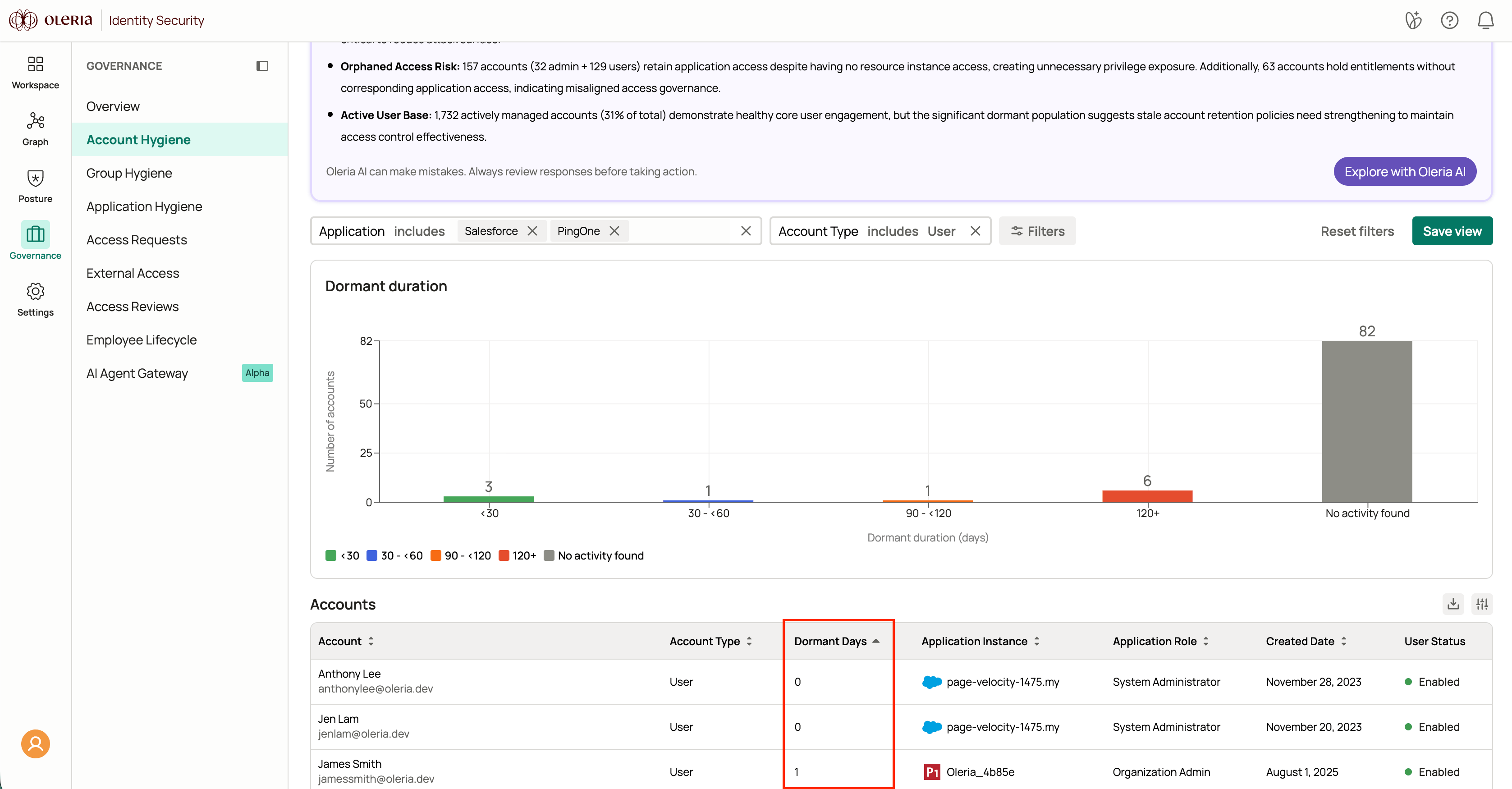
User account dormant days are available in Account Hygiene.
Go to **Governance** → **Account Hygiene**.
Apply the filter **Account type** = `user`.
The **Dormant days** column shows how long each user has been inactive. Use the sort option to order users by most or least dormant days.
 ## Machine account dormant days
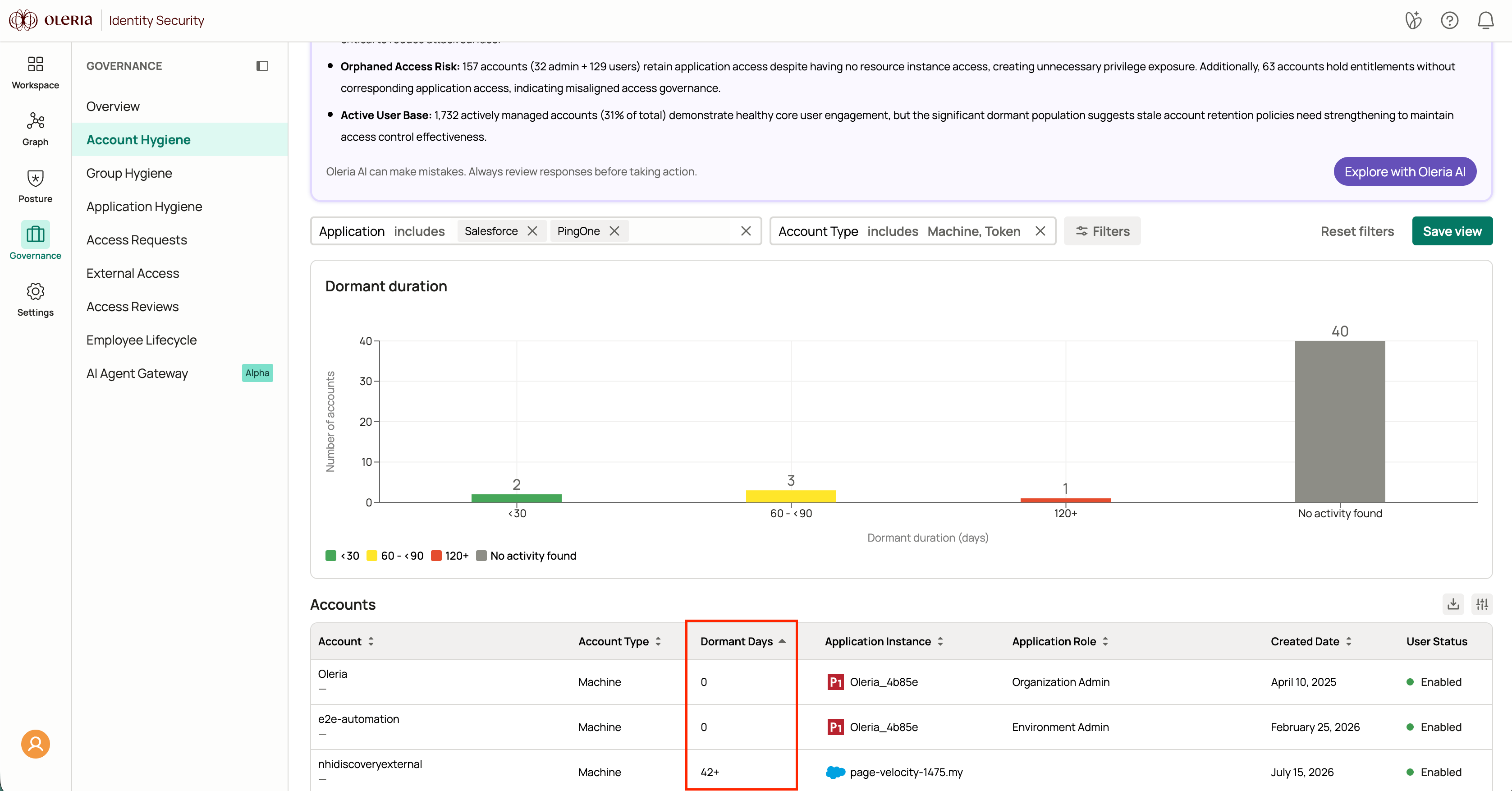
Machine account dormant days are available in Account Hygiene.
Go to **Governance** → **Account Hygiene**.
Apply the filter **Account type** = `machine`.
The **Dormant days** column shows how long each machine account has been inactive. Use the sort option to order machine accounts by most or least dormant days.
## Machine account dormant days
Machine account dormant days are available in Account Hygiene.
Go to **Governance** → **Account Hygiene**.
Apply the filter **Account type** = `machine`.
The **Dormant days** column shows how long each machine account has been inactive. Use the sort option to order machine accounts by most or least dormant days.
 ## Resource dormant days
Resource dormant days are available in Access Inventory.
Go to **Posture** → **Access Inventory** → **Resource Instances**.
The **Dormant days** column shows the minimum number of days since any account last accessed the resource.

## Account-to-resource dormant days
Account-to-resource dormant days are available in Access Inventory.
Go to **Posture** → **Access Inventory** → **Resource Instances**.
Select an account to open its 360 view.
The **Dormant days** column shows how long since that specific account last accessed each resource.
## External user-to-resource dormant days
External user-to-resource dormant days are available in External Access.
Go to **External Access** → **External users**.
Select an external user to open their 360 view.
The **Dormant days** column shows how long since that external user last accessed each resource.
## Group member dormant days
Group member dormant days are available in Group Hygiene.
Go to **Governance** → **Group Hygiene**.
Select a group name to open its member detail view.
The **Dormant days** column shows how long each member has been inactive via that group's membership. Use the sort option to order members by most or least dormant days.
## Resource dormant days
Resource dormant days are available in Access Inventory.
Go to **Posture** → **Access Inventory** → **Resource Instances**.
The **Dormant days** column shows the minimum number of days since any account last accessed the resource.

## Account-to-resource dormant days
Account-to-resource dormant days are available in Access Inventory.
Go to **Posture** → **Access Inventory** → **Resource Instances**.
Select an account to open its 360 view.
The **Dormant days** column shows how long since that specific account last accessed each resource.
## External user-to-resource dormant days
External user-to-resource dormant days are available in External Access.
Go to **External Access** → **External users**.
Select an external user to open their 360 view.
The **Dormant days** column shows how long since that external user last accessed each resource.
## Group member dormant days
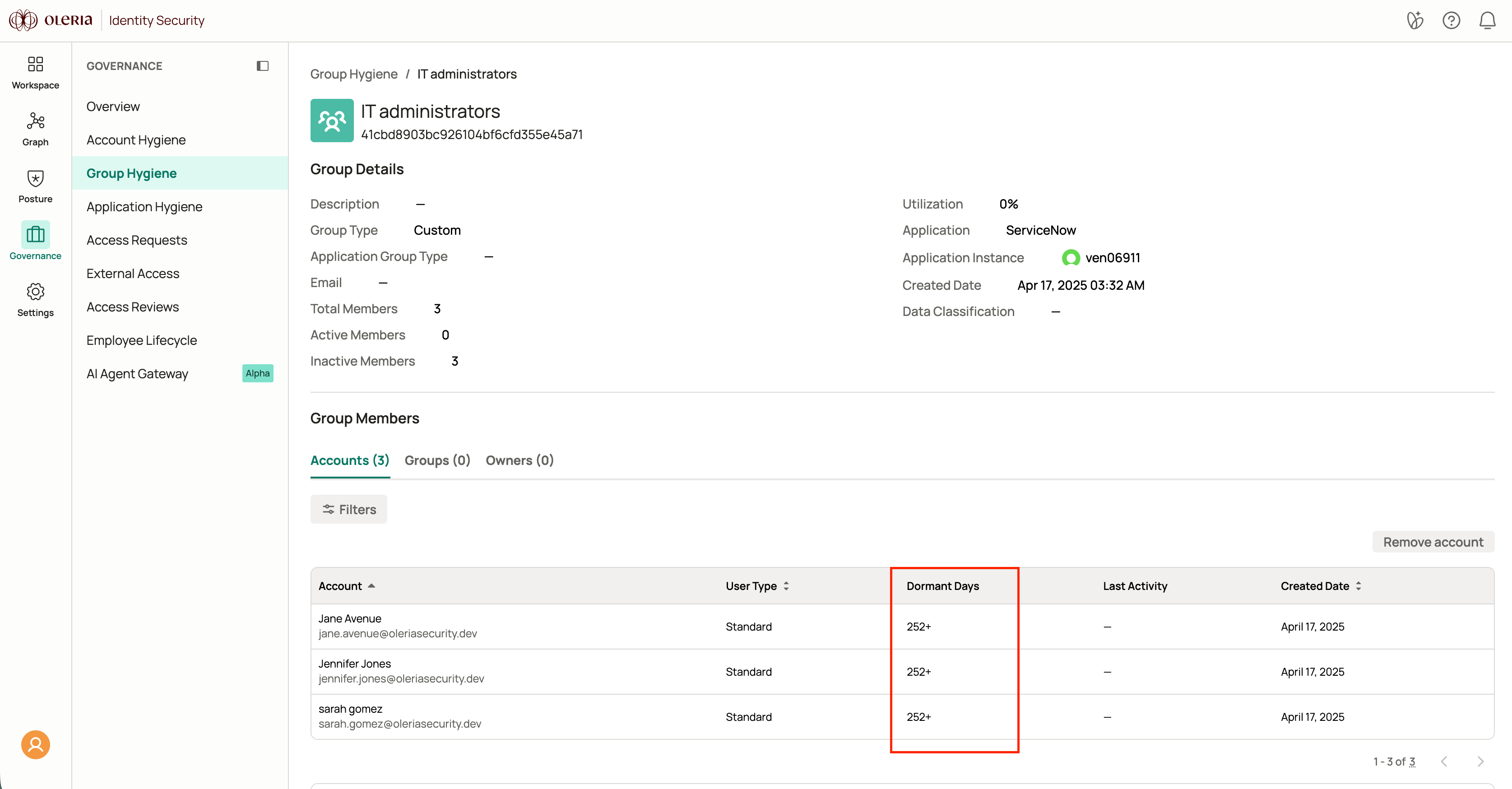
Group member dormant days are available in Group Hygiene.
Go to **Governance** → **Group Hygiene**.
Select a group name to open its member detail view.
The **Dormant days** column shows how long each member has been inactive via that group's membership. Use the sort option to order members by most or least dormant days.
 ## Contact us
For questions, contact us at [support@oleria.com](mailto:support@oleria.com).
## Contact us
For questions, contact us at [support@oleria.com](mailto:support@oleria.com).