> ## Documentation Index
> Fetch the complete documentation index at: https://docs.oleria.ai/llms.txt
> Use this file to discover all available pages before exploring further.
# Bring your own OAuth app
> Register your own OAuth application with a provider and have the gateway use it instead of Oleria's, so the connection runs on a client your organization owns and can revoke.
By default, the gateway connects to each application using an OAuth app that Oleria registers and operates. **Bring your own OAuth app** replaces that with one you register in your own provider account.
Nothing else about the connection changes. People still authorize the application themselves, the gateway still injects credentials per call, policy still applies, and activity is still recorded. What changes is whose client the provider sees, and therefore who can inspect and revoke it.
This page uses Salesforce as the example. The same option exists for the other OAuth applications, with provider-specific field names.
Only Oleria Administrators can change how an application is credentialed. [View role permissions](/administration/default-user-roles).
## Why this matters
Using your own OAuth app moves several security controls from Oleria to you.
**You hold the revocation switch.** You can block or delete the connected app in Salesforce at any time, and every gateway connection made through it stops. You don't have to raise a ticket, and you don't have to wait for Oleria to act.
**The scope ceiling is yours.** The gateway can never receive more than the OAuth scopes your connected app permits. Narrowing the app narrows every agent's reach, immediately and unilaterally.
**Your provider's own controls apply.** A connected app you own can be restricted to pre-authorized users, locked to your corporate IP ranges, and given your own refresh-token lifetime and session policy. Those controls sit in Salesforce, enforced by Salesforce, whether or not Oleria's policy agrees.
**The audit trail is on your side too.** Salesforce attributes OAuth usage and API calls to the connected app that made them. With your own app, your security team can see gateway activity in your own logs rather than relying solely on Oleria's.
**Your access doesn't share fate with anyone else's.** Oleria's OAuth app is one client used across customers. With your own client ID and secret, a revocation, rotation, or provider-side rate limit affecting Oleria's app doesn't affect you.
The client secret you provide is encrypted with your tenant's own key and never shown back to you after saving. Oleria uses it only to complete the OAuth flow and to refresh tokens.
## Before you start
You need administrator access in Salesforce to create a connected app, and the Oleria Administrator role to configure it in the gateway.
Have the gateway's callback URL to hand. Salesforce rejects an authorization request whose redirect URI doesn't match the connected app exactly:
```
https://ai-gateway.prod.oleria.io/connect/apps/salesforce/callback
```
This URL is the same for every Oleria production tenant. Each application has its own, with the application's name in the path.
## Create the connected app in Salesforce
In Salesforce **Setup**, go to **App Manager** and select **New Connected App**. Give it a name your administrators will recognize, such as `Oleria AI Agent Gateway`, and supply a contact email.
Select **Enable OAuth Settings**, then paste the callback URL above into **Callback URL**.
Leave **Require Secret for Web Server Flow** enabled. The gateway is a confidential client and always sends the secret.
Add the scopes the gateway needs:
| Scope | Why it's needed |
| :--------------------------------------------------------------- | :-------------------------------------------------------------------- |
| Manage user data via APIs (`api`) | Every Salesforce call the gateway brokers. |
| Perform requests at any time (`refresh_token`, `offline_access`) | Refreshing the connection so people don't have to sign in repeatedly. |
Add nothing else. These are exactly the scopes the gateway requests - see [Application permissions](/governance/ai-agent-gateway-app-permissions#salesforce) - and a broader connected app grants access that nothing will use.
Save the connected app. Salesforce can take several minutes to make a new app available.
Then open **Manage Consumer Details** and copy the **Consumer Key** and **Consumer Secret**. The secret is shown once.
This step is optional, and it is the reason most organizations bring their own app.
Under **Manage** -> **Edit Policies**, set **Permitted Users** to **Admin approved users are pre-authorized**, then grant the app only to the profiles or permission sets that should be able to use agents. Set **IP Relaxation** and the refresh-token policy to match your standards.
With **Admin approved users are pre-authorized**, anyone not on the list cannot connect Salesforce through the gateway at all, regardless of Oleria's configuration.
## Add it to Oleria
In the admin portal, go to **Governance** -> **Oleria AI Agent Gateway**, and on the **OAuth Access** tab select the **Salesforce** row.
In **Registry**, turn on **Bring your own credentials**. Three fields appear.
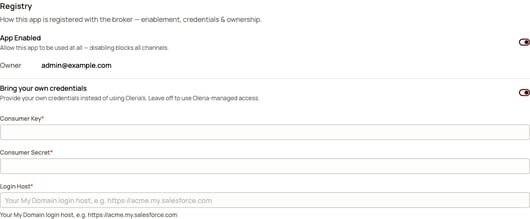 | Field | What to enter |
| :-------------- | :------------------------------------------------------------------- |
| Consumer Key | The Consumer Key from your connected app. |
| Consumer Secret | The Consumer Secret. Stored encrypted and never displayed again. |
| Login Host | Your My Domain login host, such as `https://acme.my.salesforce.com`. |
Set **Login Host** to the host people actually sign in to. A sandbox or a custom My Domain will not authenticate against the default Salesforce login host.
Select **Save**. All three fields are required - the gateway won't switch to your app until each is supplied.
To go back to Oleria's OAuth app, turn the toggle off and save again.
## Existing connections need to be remade
Switching to your own OAuth app does not migrate connections that already exist. Anyone who connected Salesforce beforehand holds a token issued to Oleria's connected app, and that token cannot be refreshed by a different client.
Those connections keep working until their access token expires. At that point the refresh fails, the gateway discards the credential, and the person is treated as not connected.
Tell people who already use Salesforce through the gateway to disconnect and reconnect after the switch. Reconnecting takes a few seconds and routes through your own connected app.
## Verify it worked
Connect Salesforce as a user and check the consent screen: it should name your connected app rather than Oleria's.
Then confirm it from the Salesforce side. In **Setup**, open **Connected Apps OAuth Usage** and look for your app - it lists the users who have authorized it and lets you revoke any of them. Seeing gateway users there is what confirms traffic is flowing through your client and not Oleria's.
## Contact us
For questions, contact us at [support@oleria.com](mailto:support@oleria.com).
| Field | What to enter |
| :-------------- | :------------------------------------------------------------------- |
| Consumer Key | The Consumer Key from your connected app. |
| Consumer Secret | The Consumer Secret. Stored encrypted and never displayed again. |
| Login Host | Your My Domain login host, such as `https://acme.my.salesforce.com`. |
Set **Login Host** to the host people actually sign in to. A sandbox or a custom My Domain will not authenticate against the default Salesforce login host.
Select **Save**. All three fields are required - the gateway won't switch to your app until each is supplied.
To go back to Oleria's OAuth app, turn the toggle off and save again.
## Existing connections need to be remade
Switching to your own OAuth app does not migrate connections that already exist. Anyone who connected Salesforce beforehand holds a token issued to Oleria's connected app, and that token cannot be refreshed by a different client.
Those connections keep working until their access token expires. At that point the refresh fails, the gateway discards the credential, and the person is treated as not connected.
Tell people who already use Salesforce through the gateway to disconnect and reconnect after the switch. Reconnecting takes a few seconds and routes through your own connected app.
## Verify it worked
Connect Salesforce as a user and check the consent screen: it should name your connected app rather than Oleria's.
Then confirm it from the Salesforce side. In **Setup**, open **Connected Apps OAuth Usage** and look for your app - it lists the users who have authorized it and lets you revoke any of them. Seeing gateway users there is what confirms traffic is flowing through your client and not Oleria's.
## Contact us
For questions, contact us at [support@oleria.com](mailto:support@oleria.com).