> ## Documentation Index
> Fetch the complete documentation index at: https://docs.oleria.ai/llms.txt
> Use this file to discover all available pages before exploring further.
# User setup
> Authorize the applications you want your AI agent to reach, from the Governance App, with no credential ever leaving Oleria.
Before an AI agent can do anything on your behalf, you tell Oleria which applications it may reach as you. This is a one-time setup, and it happens entirely in the Governance App at `youroleriainstancename-governance.oleria.io`, under **AI Agent Gateway**.
Oleria holds every credential you authorize here. Your agent never receives one - it asks the gateway, and the gateway makes the call.
Your administrator decides which applications appear here. If something you need is missing, ask an Oleria Administrator to enable it. See [Administrator setup](/governance/ai-agent-gateway-admin-setup).
## Connect your applications
Authorize each application once. Oleria stores the resulting credential and injects it per call - your agent never receives it.
Go to **AI Agent Gateway** -> **OAuth Access**. Every application your administrator has enabled is listed, with its current status.
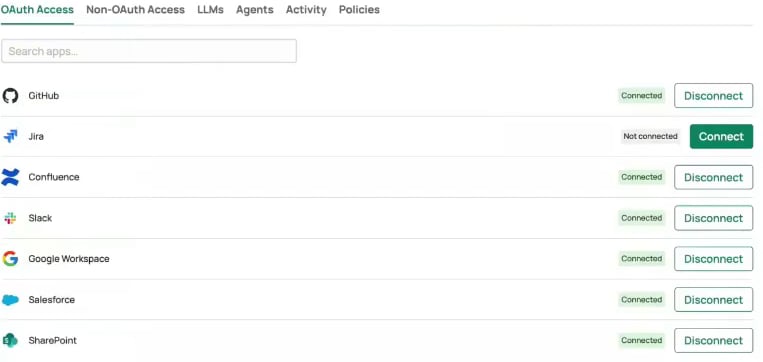 Select **Connect** next to the application. Oleria sends you to that provider's sign-in and consent screen.
Sign in to the application as yourself and approve the access it requests. The consent screen names Oleria as the application asking for access, and lists exactly what it will be able to reach.
Select **Connect** next to the application. Oleria sends you to that provider's sign-in and consent screen.
Sign in to the application as yourself and approve the access it requests. The consent screen names Oleria as the application asking for access, and lists exactly what it will be able to reach.
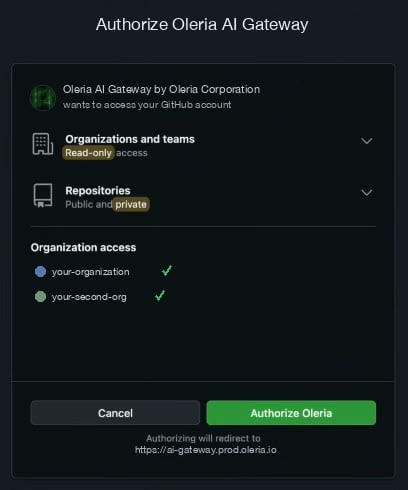 Approve it, and the provider returns you to Oleria with the application's status changed to **Connected**.
Connect every application you want your agent to use. You can disconnect any of them later with **Disconnect** - the agent loses that access immediately.
You can only connect applications your administrator has enabled. If an application you need isn't listed, ask an Oleria Administrator to enable it. If a connection is missing at runtime, the gateway tells the agent the application isn't connected, so it can ask you to connect it instead of failing silently.
## Next step
With your applications connected, add the gateway to your AI agent and start working.
There are two ways it gets there, and both end with you signed in as yourself:
* **Your administrator published it.** The gateway is already listed in your AI tool's connectors, with an authorization of **Individual**, and you only need to sign in.
* **You add it yourself.** If it isn't listed, you can add it as a custom connector using your gateway's MCP endpoint. This needs no administrator access, and the connector you add behaves exactly like a published one.
See [Connect and use your AI agent](/governance/ai-agent-gateway-connect-agents#add-the-gateway-to-your-ai-agent) for both routes.
## Contact us
For questions, contact us at [support@oleria.com](mailto:support@oleria.com).
Approve it, and the provider returns you to Oleria with the application's status changed to **Connected**.
Connect every application you want your agent to use. You can disconnect any of them later with **Disconnect** - the agent loses that access immediately.
You can only connect applications your administrator has enabled. If an application you need isn't listed, ask an Oleria Administrator to enable it. If a connection is missing at runtime, the gateway tells the agent the application isn't connected, so it can ask you to connect it instead of failing silently.
## Next step
With your applications connected, add the gateway to your AI agent and start working.
There are two ways it gets there, and both end with you signed in as yourself:
* **Your administrator published it.** The gateway is already listed in your AI tool's connectors, with an authorization of **Individual**, and you only need to sign in.
* **You add it yourself.** If it isn't listed, you can add it as a custom connector using your gateway's MCP endpoint. This needs no administrator access, and the connector you add behaves exactly like a published one.
See [Connect and use your AI agent](/governance/ai-agent-gateway-connect-agents#add-the-gateway-to-your-ai-agent) for both routes.
## Contact us
For questions, contact us at [support@oleria.com](mailto:support@oleria.com).