> ## Documentation Index
> Fetch the complete documentation index at: https://docs.oleria.ai/llms.txt
> Use this file to discover all available pages before exploring further.
# Snowflake
Oleria provides identity security and access management teams with visibility and intelligence into who has access to what, where they got that access, how they use it, and whether they should even have it. As part of that promise, we deeply integrate your Snowflake into the Oleria platform. Follow these steps to integrate Snowflake with your Oleria workspace.
## Prerequisites
* To grant these permissions, you must have an ACCOUNT ADMIN role.
Standard integrations are configured with read-only permissions.
## Copy the Account Identifier
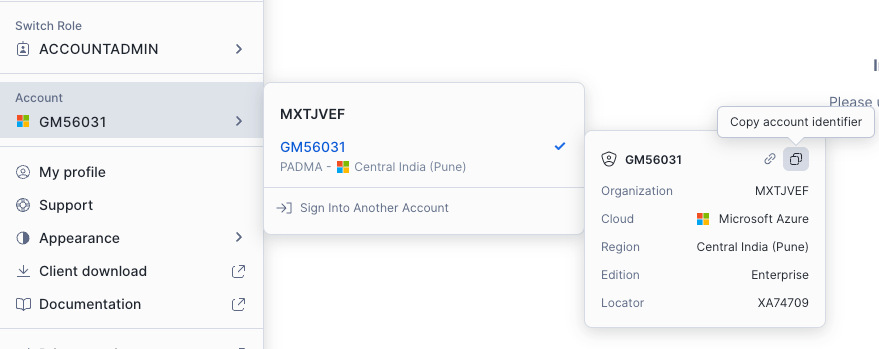
Log into your Snowflake instance and confirm your role is set to **ACCOUNTADMIN**.
Navigate to **ACCOUNT ADMIN** → **Account** → your account number. Copy the account identifier.
 ## Set Up the Oleria Connector in Snowflake
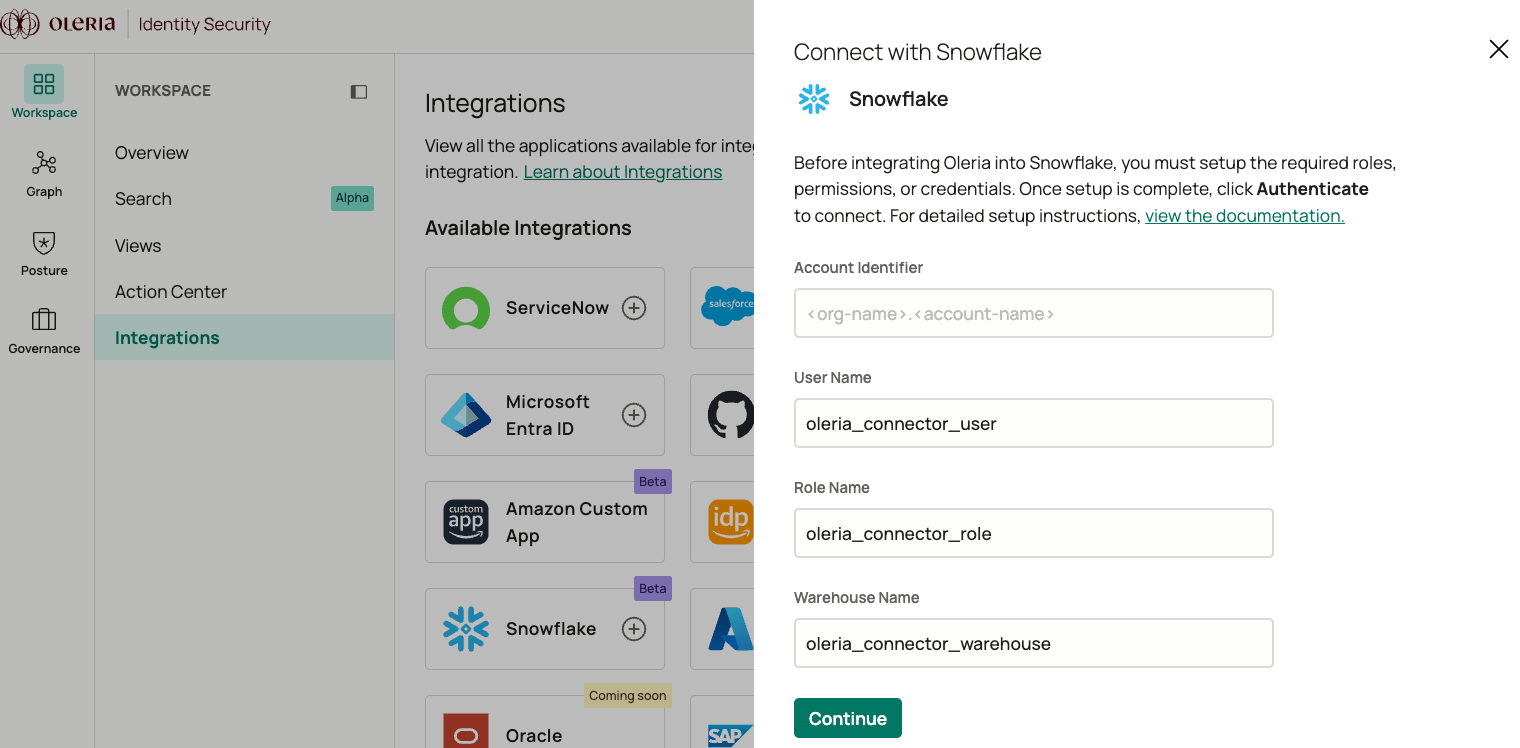
Log into your Oleria workspace, navigate to **Integrations**, and select **Snowflake**. A side panel opens. Provide the following information and select **Continue**:
* **Account Identifier** - copied above, in the format `.`
* **User Name** - default is `oleria_connector_user`. Change if preferred.
* **Role Name** - default is `oleria_connector_role`. Change if preferred.
* **Warehouse Name** - default is `oleria_connector_warehouse`. Change to use an existing one if desired.
## Set Up the Oleria Connector in Snowflake
Log into your Oleria workspace, navigate to **Integrations**, and select **Snowflake**. A side panel opens. Provide the following information and select **Continue**:
* **Account Identifier** - copied above, in the format `.`
* **User Name** - default is `oleria_connector_user`. Change if preferred.
* **Role Name** - default is `oleria_connector_role`. Change if preferred.
* **Warehouse Name** - default is `oleria_connector_warehouse`. Change to use an existing one if desired.
 A script is generated. Copy the script.
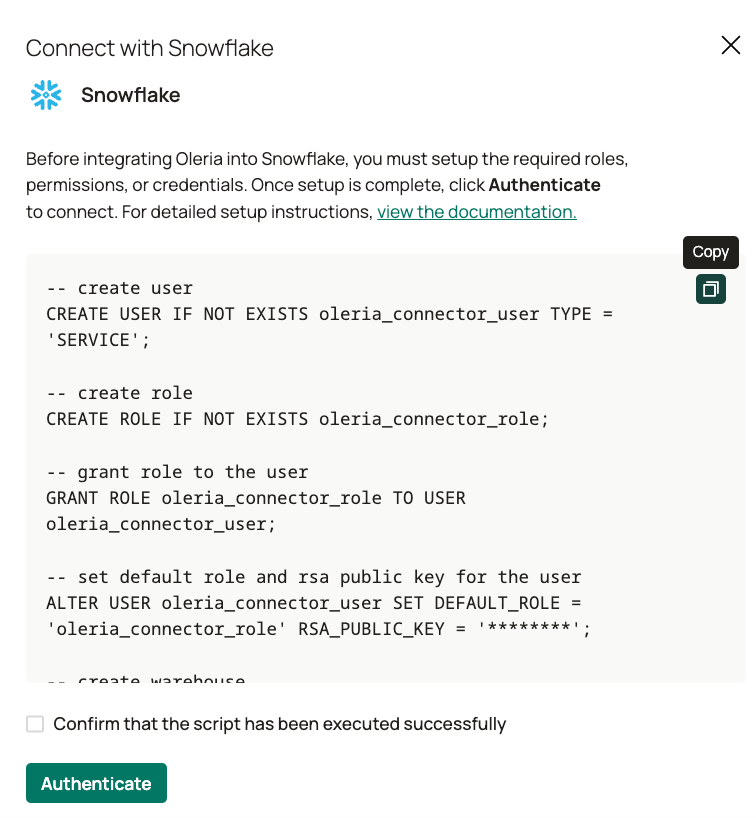 Do not close this window.
## Execute the Script in Snowflake
Open the Snowflake console and navigate to **SQL Worksheet**. Create a new SQL worksheet, paste the script you copied, and select **Run All**.
Do not close this window.
## Execute the Script in Snowflake
Open the Snowflake console and navigate to **SQL Worksheet**. Create a new SQL worksheet, paste the script you copied, and select **Run All**.
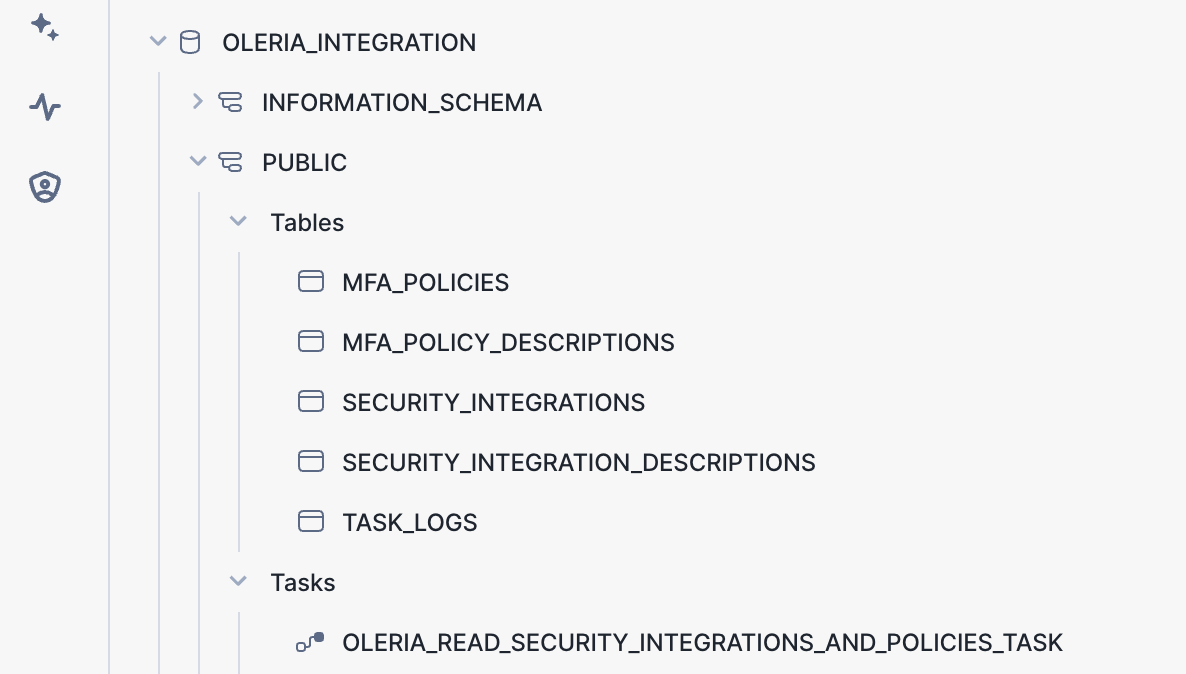
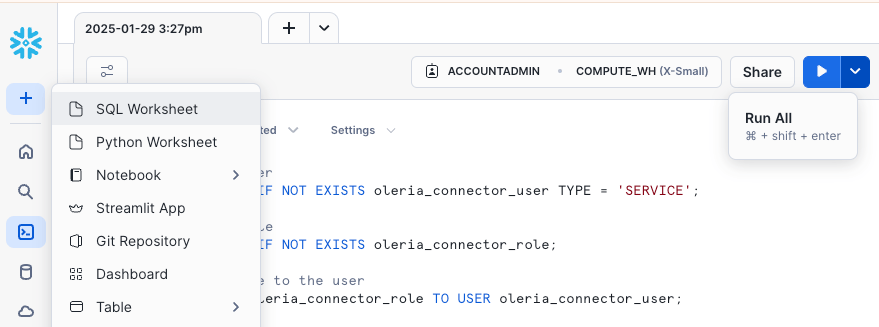 The script creates the database, tables, and tasks. These tables store policies and integration metadata that Oleria uses to generate risks and SAML SSO insights. The task is scheduled to run hourly to keep the tables up to date.
 ## Complete Authentication in Oleria
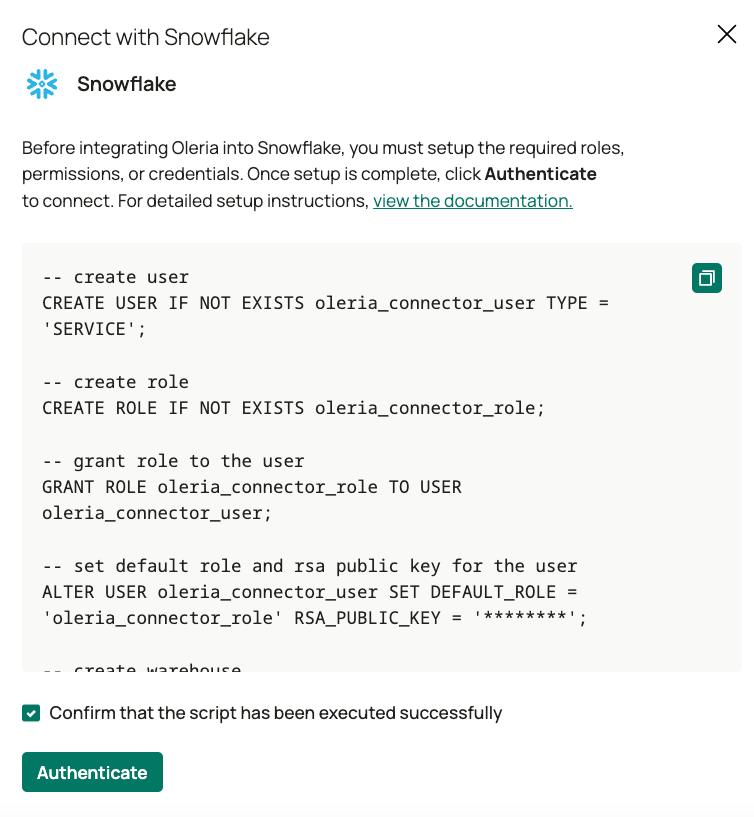
Log into your Oleria workspace, check **Confirm that the script has been executed successfully**, and select **Authenticate**.
## Complete Authentication in Oleria
Log into your Oleria workspace, check **Confirm that the script has been executed successfully**, and select **Authenticate**.
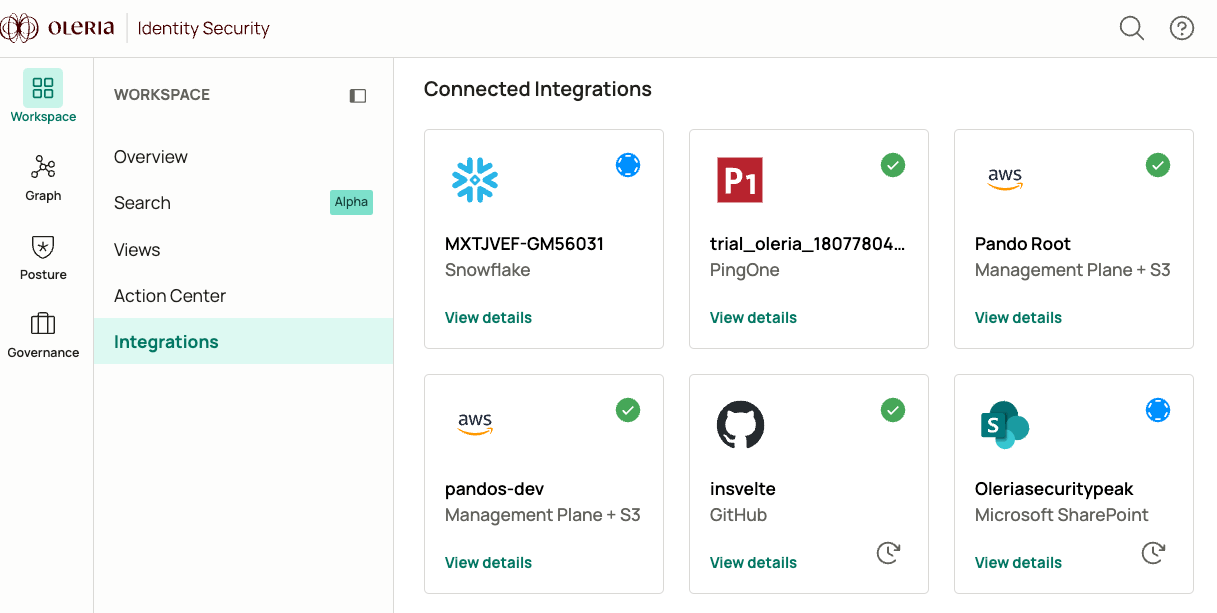
 Navigate to **Connected Integrations** to find the newly integrated Snowflake instance.
 ## Contact us
For questions about this integration, contact us at [support@oleria.com](mailto:support@oleria.com).
## Contact us
For questions about this integration, contact us at [support@oleria.com](mailto:support@oleria.com).