> ## Documentation Index
> Fetch the complete documentation index at: https://docs.oleria.ai/llms.txt
> Use this file to discover all available pages before exploring further.
# Navigate and search the Access Graph
> Search the Access Graph to find a starting point, then trace access paths from an account to its resources or from a resource back to every account that can reach it.
The Access Graph lets you trace access relationships dynamically - from an account to the resource instances it can reach, or from a resource instance back to every account, role, and group that has access to it. The graph updates in real time as you interact, making it practical for investigating intricate access paths and detecting unexpected connections.
## Search the graph
Search lets you find identities, application accounts, or resource instances by account email or resource instance name, then build a graph from the results.
Access Graph shows the top 5 search results. To see all results, select **View all results** to open the Access Inventory page.
### Search by accounts
In the search bar, select **Accounts** from the dropdown menu.
Type the account email address. A list of matching application account nodes displays.
If the email address contains reserved characters, wrap it in double quotes. Example: `"demo-salesforce-group+anthonylee@oleria.com"`
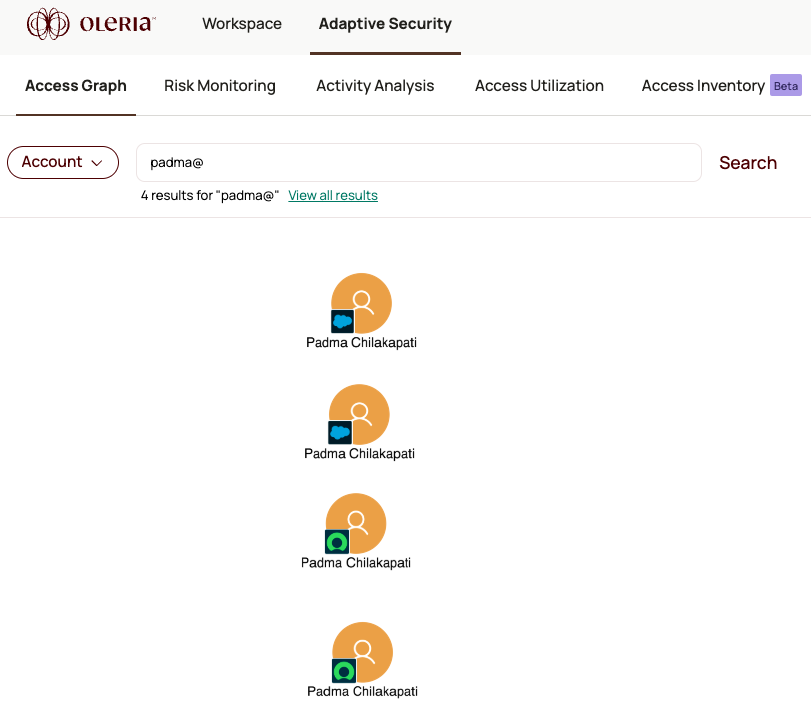
Select an account from the results to build the graph. If the account exists in multiple application instances (for example, Salesforce Production and Salesforce Dev), the graph shows a separate node for each.
### Search by resource instances
In the search bar, select **Resource Instances** from the dropdown menu.
Type the resource instance name. A list of matching resource instance nodes displays.
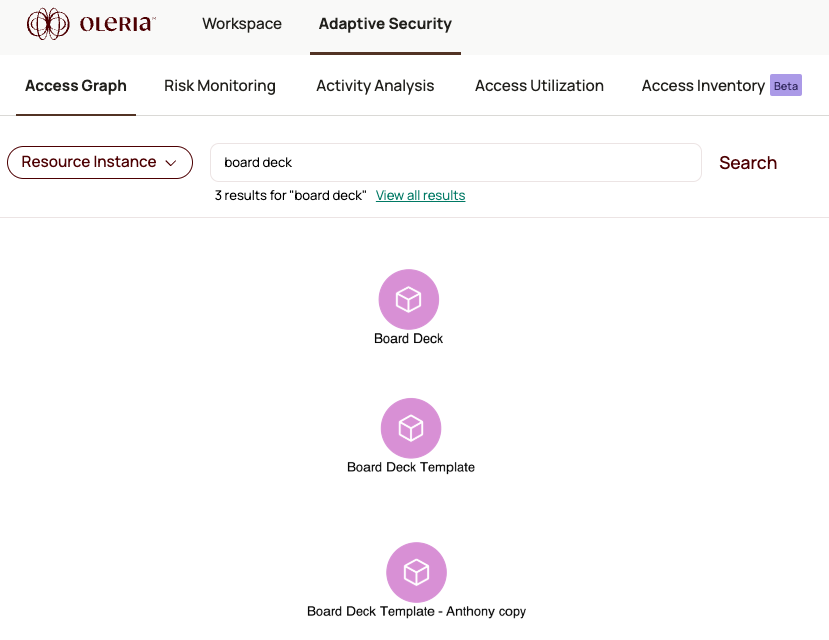
Select a resource instance from the results to build the graph. If the instance exists in multiple applications or environments, the graph shows a separate node for each.
## Navigate from an account to a resource instance
Use this path when you want to understand what a specific user or machine account can access.
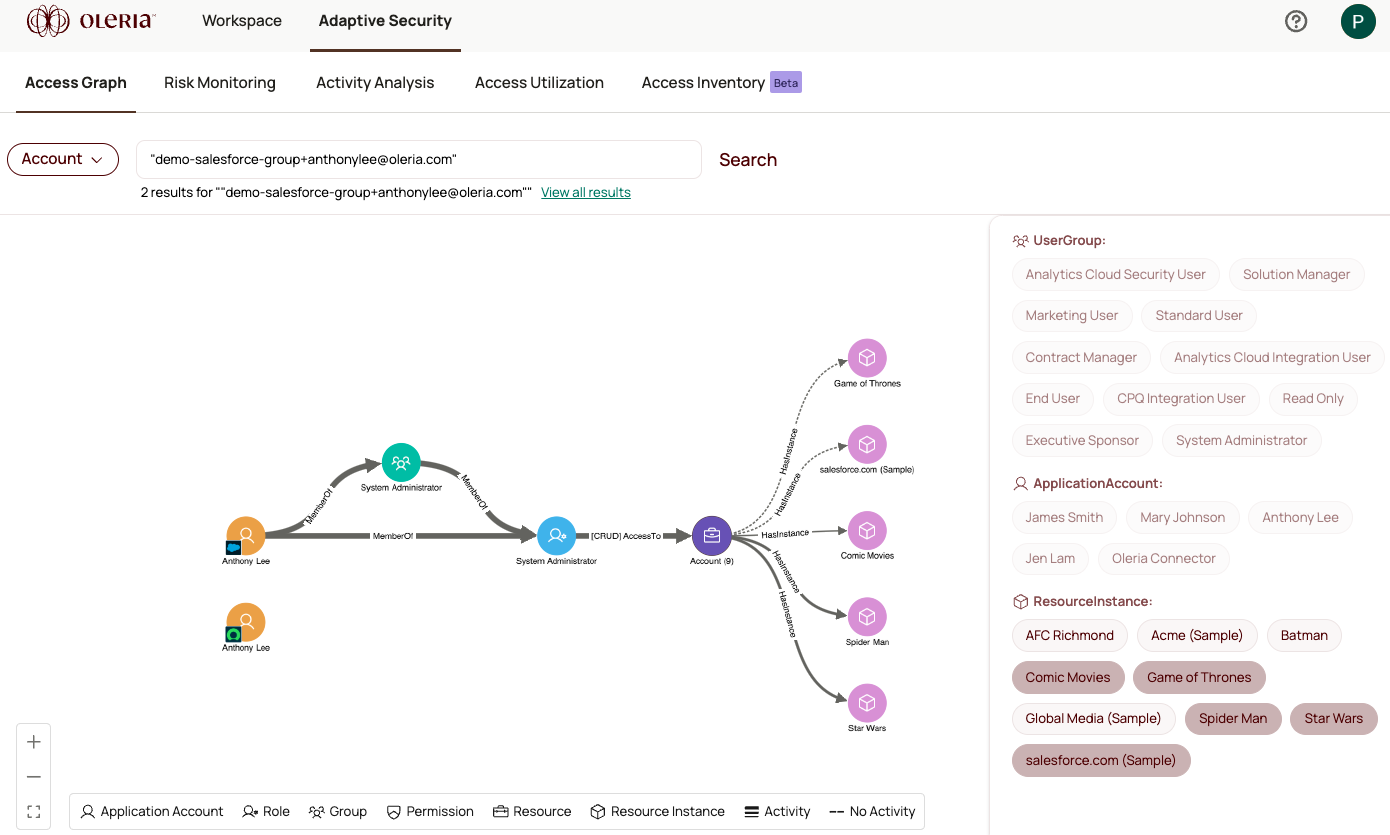
Select **Account** from the search dropdown and enter the account email. The graph displays all applications the account has access to.
Select an application account node to open its side panel. The panel shows details including email, user ID, assigned roles, group memberships, and resource access.
Select any resource from the side panel. The graph builds out to show that resource node.
Select the resource node to open a side panel listing the resource instances the account can access.
Select one or more resource instances to complete the graph. You now see the full access path from the account to its resource instances.
## Navigate from a resource instance to accounts
Use this path during an incident investigation when you need to know every identity that can reach a specific resource.
Select **Resource instance** from the search dropdown and enter the resource name. The graph displays the resource instance node.
Select the resource instance node to open its side panel. The panel lists all accounts that have access to it.
Select one or more accounts from the side panel to expand the graph. Each selected account appears as a node connected to the resource instance.
Select any account node to open its side panel and trace how it obtained access - through a direct role assignment, group membership, or inherited permission.
## Contact us
For questions, contact us at [support@oleria.com](mailto:support@oleria.com).