> ## Documentation Index
> Fetch the complete documentation index at: https://docs.oleria.ai/llms.txt
> Use this file to discover all available pages before exploring further.
# Slack
> Connect Slack to Oleria to receive security alerts and notifications directly in your Slack channels.
Connect Slack to Oleria to receive security alerts and notifications directly in your Slack channels. Most organizations connect using the recommended OAuth method, in which Oleria's verified Slack app is installed into your workspace with a single approval. If your security policy does not permit installing third-party apps, you can instead connect using your own Slack app and a bot token.
## Prerequisites
1. Admin access on the Oleria platform.
2. Slack **Workspace Owner or Admin** rights, which are required to add or create apps.
## Connect Slack to Oleria
First, open the Slack connection panel in Oleria:
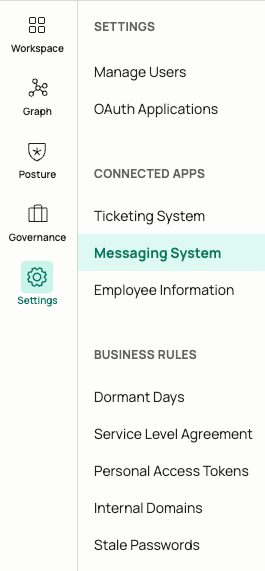
Select **Messaging Systems** under the **Settings** window.
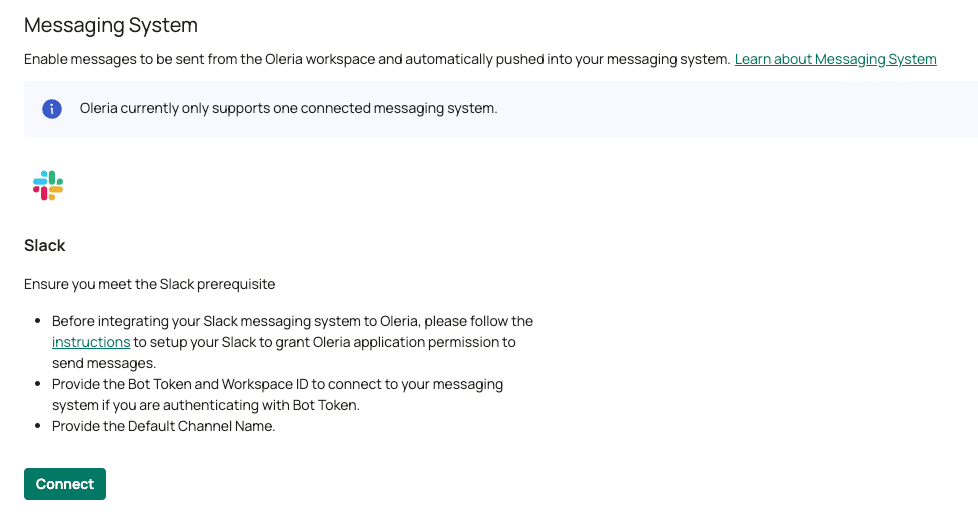
 Select **Connect** under the Slack application in Messaging Systems.
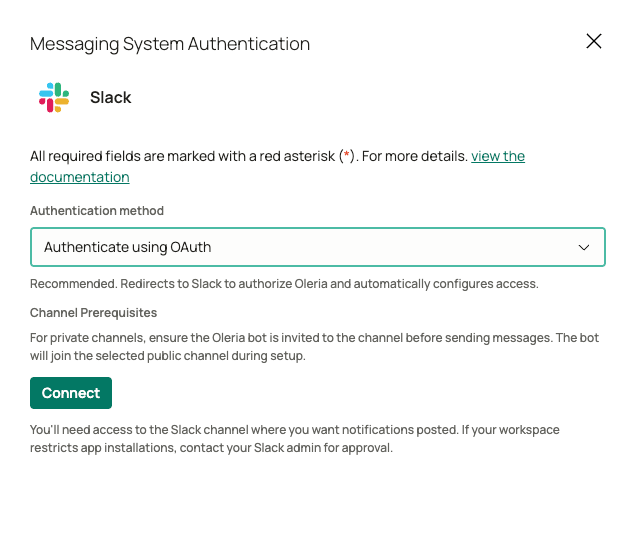
 Then choose an authentication method. OAuth is recommended for most organizations. Use your own Slack app only when your security policy does not permit installing third-party apps.
Oleria's verified Slack app is installed into your workspace with a single approval. No app creation or credential sharing is required.
Select **Connect** in the overlay. Slack redirects you to an authorization screen showing the permissions Oleria will receive. Approve the request, then select the default channel where Oleria sends messages, unless a different channel is configured later.
Then choose an authentication method. OAuth is recommended for most organizations. Use your own Slack app only when your security policy does not permit installing third-party apps.
Oleria's verified Slack app is installed into your workspace with a single approval. No app creation or credential sharing is required.
Select **Connect** in the overlay. Slack redirects you to an authorization screen showing the permissions Oleria will receive. Approve the request, then select the default channel where Oleria sends messages, unless a different channel is configured later.
 For private channels, ensure the Oleria bot is invited to the channel. Without this, Oleria cannot send messages to the selected private channel.
Use this method only when your organization cannot use the OAuth flow, either because your security policy does not permit installing third-party apps or because you are required to use an internally owned Slack app. It requires your Slack administrator to create, install, and maintain a dedicated Slack app, and to share that app's credentials with Oleria.
**Additional prerequisites for this method:**
* A **single Slack workspace**. If your organization uses Slack Enterprise Grid, the app must be installed to one specific workspace. Organization-wide (Grid) installations are not supported.
* The **Oleria app manifest** for your environment. Request this from your Oleria representative before you begin. It defines the app with the required permissions and settings already configured for your account.
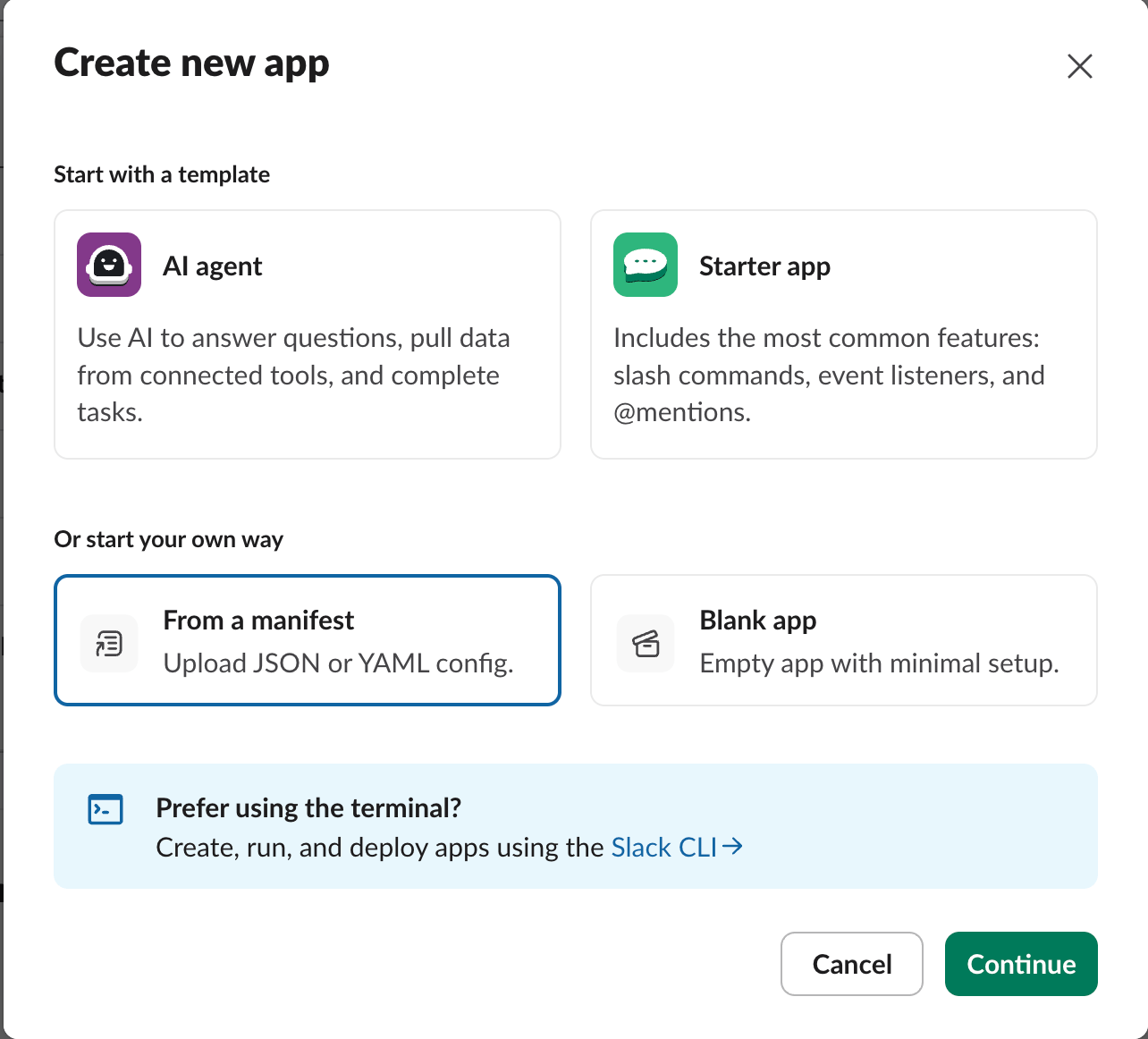
1. Go to the [Slack API dashboard](https://api.slack.com/apps) and select **Create New App**.
2. Choose **From a manifest**.
3. Select the workspace you want to connect, then paste the manifest provided by Oleria.
4. Review the configuration and select **Create**.
Creating the app from the manifest automatically applies the required permissions and interactivity settings, so no further configuration is needed in this step.
For private channels, ensure the Oleria bot is invited to the channel. Without this, Oleria cannot send messages to the selected private channel.
Use this method only when your organization cannot use the OAuth flow, either because your security policy does not permit installing third-party apps or because you are required to use an internally owned Slack app. It requires your Slack administrator to create, install, and maintain a dedicated Slack app, and to share that app's credentials with Oleria.
**Additional prerequisites for this method:**
* A **single Slack workspace**. If your organization uses Slack Enterprise Grid, the app must be installed to one specific workspace. Organization-wide (Grid) installations are not supported.
* The **Oleria app manifest** for your environment. Request this from your Oleria representative before you begin. It defines the app with the required permissions and settings already configured for your account.
1. Go to the [Slack API dashboard](https://api.slack.com/apps) and select **Create New App**.
2. Choose **From a manifest**.
3. Select the workspace you want to connect, then paste the manifest provided by Oleria.
4. Review the configuration and select **Create**.
Creating the app from the manifest automatically applies the required permissions and interactivity settings, so no further configuration is needed in this step.
 **For your security review:** the manifest requests the following bot token scopes. Each grants a capability Oleria requires to operate.
| Scope | Purpose |
| ------------------ | ------------------------------------------- |
| `chat:write` | Send and update messages |
| `im:write` | Send direct messages to users |
| `channels:read` | Discover public channels |
| `groups:read` | Discover private channels |
| `channels:join` | Join public channels automatically |
| `users:read` | Look up workspace users |
| `users:read.email` | Match users by email address |
| `incoming-webhook` | Support webhook-based notification channels |
On the **OAuth & Permissions** page, install the app to your workspace and approve the requested permissions. After installation, Slack generates a **Bot User OAuth Token** that begins with `xoxb-` on this same page. You provide this token to Oleria in the next step.
**For your security review:** the manifest requests the following bot token scopes. Each grants a capability Oleria requires to operate.
| Scope | Purpose |
| ------------------ | ------------------------------------------- |
| `chat:write` | Send and update messages |
| `im:write` | Send direct messages to users |
| `channels:read` | Discover public channels |
| `groups:read` | Discover private channels |
| `channels:join` | Join public channels automatically |
| `users:read` | Look up workspace users |
| `users:read.email` | Match users by email address |
| `incoming-webhook` | Support webhook-based notification channels |
On the **OAuth & Permissions** page, install the app to your workspace and approve the requested permissions. After installation, Slack generates a **Bot User OAuth Token** that begins with `xoxb-` on this same page. You provide this token to Oleria in the next step.
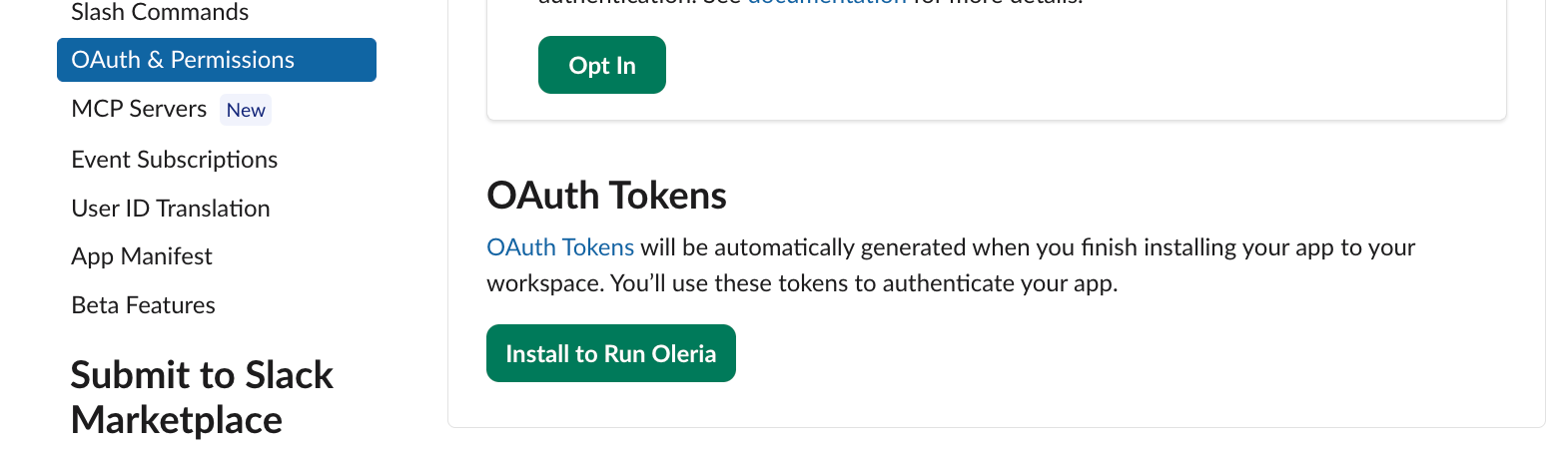 Provide the following values to your Oleria representative through a secure channel. Oleria uses these to send messages on your behalf and to verify interactive actions that originate from your app.
| Value | Where to find it in Slack |
| ----------------------------------- | ------------------------------------------------------------------------------------------------------------------------------------------- |
| **Bot User OAuth Token** (`xoxb-…`) | **OAuth & Permissions** |
| **Client ID** | **Basic Information → App Credentials** |
| **Client Secret** | **Basic Information → App Credentials** |
| **Signing Secret** | **Basic Information → App Credentials** |
| **Workspace ID** (Team ID, `T…`) | Workspace settings, or your Slack administrator ([how to locate it](https://slack.com/help/articles/221769328-Locate-your-Slack-URL-or-ID)) |
| **Default channel name** | The channel Oleria posts to by default (for example, `#oleria-alerts`) |
The Client ID, Client Secret, and Signing Secret are all on the **Basic Information → App Credentials** page. Select **Show** to reveal each secret value.
Provide the following values to your Oleria representative through a secure channel. Oleria uses these to send messages on your behalf and to verify interactive actions that originate from your app.
| Value | Where to find it in Slack |
| ----------------------------------- | ------------------------------------------------------------------------------------------------------------------------------------------- |
| **Bot User OAuth Token** (`xoxb-…`) | **OAuth & Permissions** |
| **Client ID** | **Basic Information → App Credentials** |
| **Client Secret** | **Basic Information → App Credentials** |
| **Signing Secret** | **Basic Information → App Credentials** |
| **Workspace ID** (Team ID, `T…`) | Workspace settings, or your Slack administrator ([how to locate it](https://slack.com/help/articles/221769328-Locate-your-Slack-URL-or-ID)) |
| **Default channel name** | The channel Oleria posts to by default (for example, `#oleria-alerts`) |
The Client ID, Client Secret, and Signing Secret are all on the **Basic Information → App Credentials** page. Select **Show** to reveal each secret value.
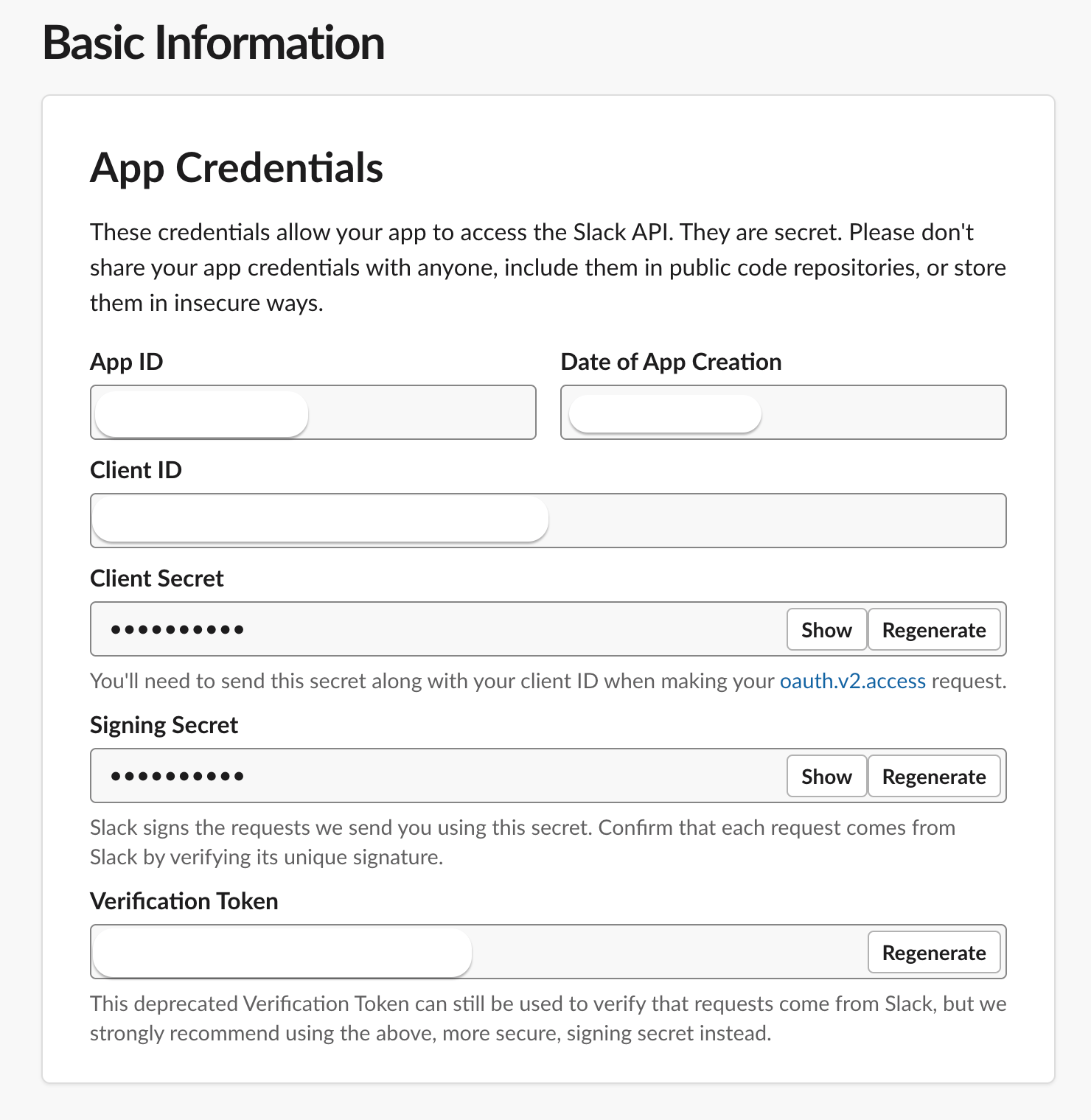 Share all of the values above. The Client ID, Client Secret, and Signing Secret let Oleria verify and respond to interactive actions (such as approve and deny buttons) from your app; without them, only one-way notifications work.
The Bot User OAuth Token must be a bot token (`xoxb-`). User tokens (`xoxp-`) and app-level tokens (`xapp-`) are not supported. The Workspace ID must correspond to the workspace where the app was installed.
* **Public channels:** the bot joins the channel automatically once connected.
* **Private channels:** you must invite the bot manually. In the channel, enter `/invite @` (replace `` with your app's bot name). Without this, Oleria cannot send messages to a private channel.
**Limitations of this method:**
* **You must share your app credentials.** To support interactive actions such as approve and deny buttons, you must share your app's Signing Secret, Client ID, and Client Secret in addition to the Bot Token. Without the Signing Secret, interactive buttons cannot be verified and only one-way notifications work.
* **Single workspace only.** The app must be installed to one workspace and cannot be an organization-wide (Enterprise Grid) installation.
* **You own maintenance.** You own the app, its scopes, and its token. If the token is revoked or rotated, or a scope is removed, messaging breaks until you supply updated credentials to Oleria. Because this method requires multiple linked credentials (Bot Token, Client ID, Client Secret, and Signing Secret) that must be re-submitted together through a secure channel, there is no self-service console update. Contact [support@oleria.com](mailto:support@oleria.com) to provide updated values.
* **App identity is yours.** The bot appears in Slack under your app's name and icon, not Oleria's.
## Verify the Slack integration
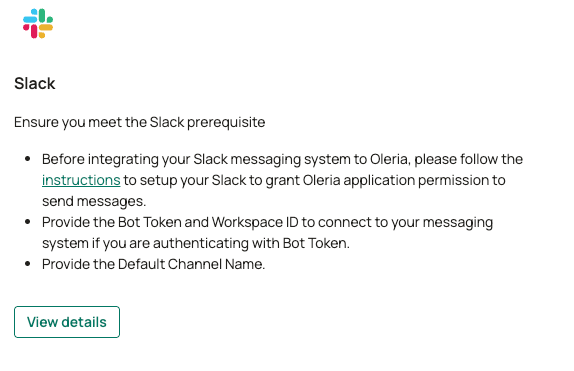
Select **View Details** on the Slack integration in the Messaging Systems page. A connected Slack integration confirms that messaging has been configured and Oleria is able to send messages. To confirm end-to-end, trigger a test notification and verify that it appears in your default channel.
Share all of the values above. The Client ID, Client Secret, and Signing Secret let Oleria verify and respond to interactive actions (such as approve and deny buttons) from your app; without them, only one-way notifications work.
The Bot User OAuth Token must be a bot token (`xoxb-`). User tokens (`xoxp-`) and app-level tokens (`xapp-`) are not supported. The Workspace ID must correspond to the workspace where the app was installed.
* **Public channels:** the bot joins the channel automatically once connected.
* **Private channels:** you must invite the bot manually. In the channel, enter `/invite @` (replace `` with your app's bot name). Without this, Oleria cannot send messages to a private channel.
**Limitations of this method:**
* **You must share your app credentials.** To support interactive actions such as approve and deny buttons, you must share your app's Signing Secret, Client ID, and Client Secret in addition to the Bot Token. Without the Signing Secret, interactive buttons cannot be verified and only one-way notifications work.
* **Single workspace only.** The app must be installed to one workspace and cannot be an organization-wide (Enterprise Grid) installation.
* **You own maintenance.** You own the app, its scopes, and its token. If the token is revoked or rotated, or a scope is removed, messaging breaks until you supply updated credentials to Oleria. Because this method requires multiple linked credentials (Bot Token, Client ID, Client Secret, and Signing Secret) that must be re-submitted together through a secure channel, there is no self-service console update. Contact [support@oleria.com](mailto:support@oleria.com) to provide updated values.
* **App identity is yours.** The bot appears in Slack under your app's name and icon, not Oleria's.
## Verify the Slack integration
Select **View Details** on the Slack integration in the Messaging Systems page. A connected Slack integration confirms that messaging has been configured and Oleria is able to send messages. To confirm end-to-end, trigger a test notification and verify that it appears in your default channel.
 ## Contact us
For questions, or for help obtaining the app manifest and sharing credentials securely, contact us at [support@oleria.com](mailto:support@oleria.com).
## Contact us
For questions, or for help obtaining the app manifest and sharing credentials securely, contact us at [support@oleria.com](mailto:support@oleria.com).