
Connect your applications first. An agent pointed at the gateway can only reach applications you’ve already authorized. See User setup.
Add the gateway to your AI agent
The gateway is exposed to agents as an MCP connector. Any agent that supports remote MCP connectors can use it - including Claude and Claude Code.1
Look for the gateway in your connectors
Open your agent’s connector settings. In Claude, this is Settings -> Connectors.If your administrator has already published the gateway, it’s listed with an authorization of Individual - meaning you still sign in as yourself. Skip to the next step.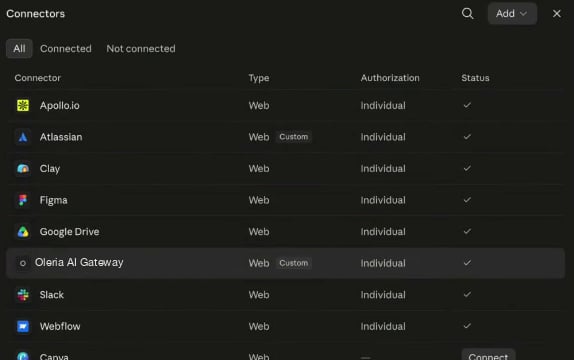
2
Add it yourself if it isn't listed
You don’t need administrator access to add the gateway. Select Add, choose a custom connector, and give it a name - this is what you’ll see in your connectors list - along with your gateway’s MCP endpoint:In Claude Code, add it from the command line instead:
--scope user makes the gateway available in every project you work in; leave it out to add it to the current project only. Run claude mcp list to confirm it registered.This endpoint is the same for every Oleria production tenant - there is nothing tenant-specific to substitute.This is the same endpoint an administrator publishes centrally, so a connector you add yourself behaves identically: it signs you in as yourself, reaches only the applications you’ve connected, and is governed by the same policy.3
Sign in to Oleria
Select Connect and sign in to Oleria when prompted. This is a standard browser sign-in - there are no passwords, tokens, or API keys to paste into the agent. When it finishes, the connector shows as connected.In Claude Code, run
/mcp, choose the gateway, and the same sign-in opens in your browser.Signing in is what ties the agent to you. From this point the gateway acts as you, with your permissions and the applications you connected above.4
Review the tools
The connector exposes one tool per connected application, plus helpers such as Get credentials, List apps, and Get connection info. You only see tools your organization has given you access to. Choose whether each tool runs automatically or needs your approval first.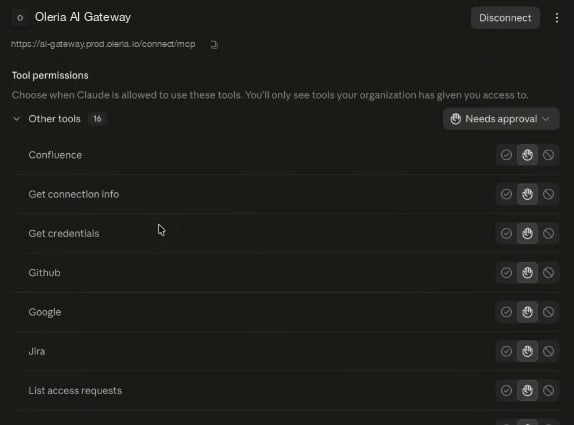
Work with your agent
Once the connector is in place, nothing about how you work changes. Ask for what you need, and the agent uses the gateway to reach each application in turn.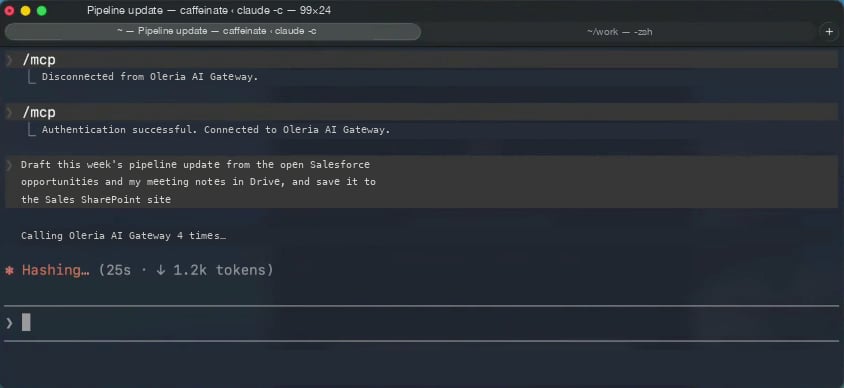
When an action needs approval
If your administrator marked an action as Ask, the agent can’t complete it on its own. Reading from Salesforce and Drive above is fine, but saving the draft is a Write file action on SharePoint. The gateway holds that call, sends an approval request to the approver, and tells the agent what happened.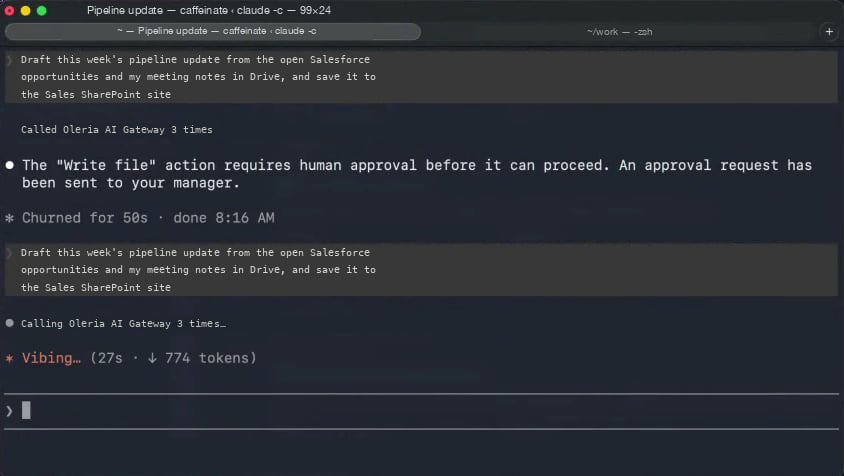
See what your agent did
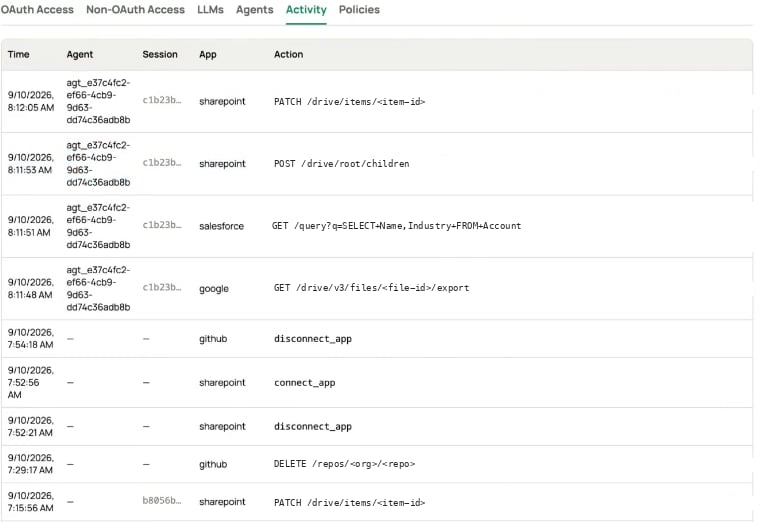
The Activity tab shows every call your agents made through the gateway - the time, the agent, the session, the application, and the exact action. Connections and disconnections appear alongside API calls, so you can see how access was obtained as well as how it was used.